Broken Smart Watch? Quick Troubleshooting for Fast Fixes
Learn practical steps to diagnose and fix a broken smart watch quickly. This guide covers charging, reboot, resets, data backup, and when to seek service.


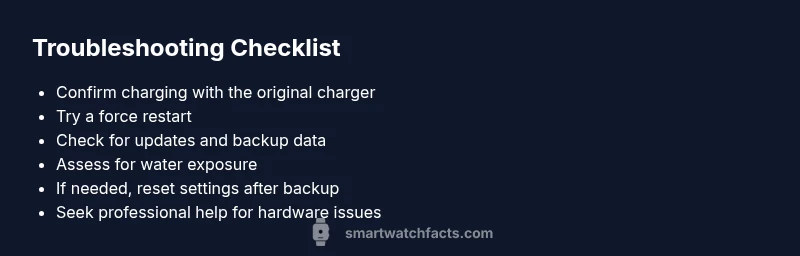
Most often, a broken smart watch stems from a drained battery, a frozen firmware, or a minor software glitch. Start with a full recharge using the original charger, then force restart if the screen remains dark. Check for battery indicators and current update status; if the problem persists, consider a factory reset after backing up data.
Why a Broken Smart Watch Happens
A broken smart watch can be caused by battery wear, software faults, impact damage, or water exposure. The Smartwatch Facts team notes that most issues begin with simple, user-serviceable steps rather than mysterious hardware failures. In many cases, the problem is not the display but how the device communicates with the OS or charger. For example, if the watch turns on but shows a blank screen, the issue is often a display driver or firmware crash rather than a dead battery. On the other hand, a watch that refuses to power up at all is frequently facing a power issue, a discharged battery, or a failed charging dock. Being aware of these common patterns helps you prioritize fixes and avoid unnecessary repairs. Over time battery health degrades, especially for older models, increasing the likelihood of unexpected shutdowns. Regular maintenance and cautious charging habits can extend life and reduce the frequency of broken smart watch moments. According to Smartwatch Facts, understanding these common failure modes empowers you to act quickly and safely without rushing to expensive repairs.
Immediate Quick Checks (First 5 Minutes)
- Ensure you’re using the original charger and cable. Third-party accessories can fail to deliver consistent power, leaving the watch unresponsive.
- Confirm there is visible charging activity (an indicator light, vibration, or a boot animation). If nothing happens, try a different power outlet or a different charger dock.
- Check for physical damage around the ports and band connectors. A loose port or bent pin can prevent charging or data transfer.
- Try a force restart by holding the power button for 10–15 seconds (or follow the manufacturer’s method). If the screen flickers or shows a logo, the device may be recovering from a firmware hiccup.
- Verify your smartwatch is paired with its phone and has a stable Bluetooth/Wi-Fi connection. A disrupted pairing can make it seem like the watch is broken when it only needs re-sync.
- If you recently updated software, confirm the update finished completely. A partial update can leave the OS in an unstable state and cause intermittent freezes. Smartwatch Facts recommends allowing updates to complete before testing again.
Common Causes and Quick Fixes
- Battery wear or complete discharge: Leave on original charger for at least 30 minutes and then attempt a reboot. If it still won’t respond, try a different charger to rule out a faulty cable.
- Firmware crash or OS bug: Perform a force restart, then check for pending updates and install them. If possible, reset network settings to clear stuck processes.
- Water or sweat exposure: Dry the ports with a soft cloth and avoid charging until the device is fully dry. If moisture was inside, allow time for the internals to dry before retrying charging.
- Damaged display or digitizer: A dark screen with touch input that doesn’t register often points to the display driver. A factory reset won’t fix hardware, so consider service if the screen remains blank after charging and rebooting. Smartwatch Facts emphasizes a systematic approach: start with the simplest fixes, then escalate only when necessary. This minimizes needless replacement parts and keeps your data safer and more accessible.
Diagnostic-Flow: Symptom to Diagnosis
The diagnostic flow below helps you map symptoms to likely causes and practical remedies. Start with the everyday checks, then progress to targeted fixes. If the symptom is a dead screen, confirm power delivery first; if the device powers on but behaves erratically, focus on software and updates. Always bias toward data backup before performing resets, as the goal is to preserve user data whenever possible.
Step-by-Step Fixes for the Most Common Causes
This section provides actionable steps for the most common issues. Follow the steps in order and stop when the device returns to normal operation. If you encounter a conflict with any step, skip to the next one rather than forcing a fix that could cause data loss or further damage. Never attempt battery replacement yourself unless you have professional guidance, especially with sealed smart watches. If the device is under warranty, contact the manufacturer for supported service options.
Prevention Tips & Safety Warnings
- Regularly recharge on a schedule that respects the manufacturer’s battery guidelines to maintain health and performance. Avoid letting the battery fully discharge frequently.
- Use only official or certified accessories to prevent power irregularities that can corrupt the OS or battery.
- Keep software up-to-date to reduce freeze and crash risks. Disable beta firmware unless you’re prepared to troubleshoot additional bugs.
- If the device has been exposed to water, do not charge it until fully dry. If moisture was present, allow a minimum drying period and consult a professional if you’re unsure.
- Safety: working with electronics carries shock and heat risks. If you’re unsure about any step, pause and seek professional assistance. The Smartwatch Facts team stresses that professional repair may be the safer option for water damage or hardware failures.
When to Seek Professional Help and How to Prepare
If none of the at-home fixes restore function, or if you see signs of water ingress, unusual heat, or screen damage, professional servicing is recommended. Before you go, back up as much data as possible through Bluetooth or cloud sync, note model numbers, and gather purchase receipts. A certified technician can diagnose hardware issues such as failed battery cells, damaged charging ports, or motherboard problems. Remember, attempting risky repairs at home can void warranties and lead to further damage. Smartwatch Facts advises contacting the manufacturer or an authorized repair center for an accurate assessment and repair options.
Steps
Estimated time: 45-60 minutes
- 1
Connect to the original charger and wait
Plug the watch into its original charger and leave it for at least 30 minutes. Look for any charging indicator, vibration, or glow to confirm power delivery.
Tip: If you see no indicator after 30 minutes, try a different outlet or charger dock. - 2
Force restart the device
Hold the power button (and any required buttons) for 10–15 seconds or follow the manufacturer’s instruction to force restart. This can clear a frozen OS.
Tip: Avoid pressing multiple buttons at once if your model uses a unique sequence. - 3
Check for software updates
Once the device powers up, check for pending software updates and install them. Updates can resolve firmware glitches causing unresponsiveness.
Tip: If you cannot access settings, connect to a paired phone to push the update. - 4
Back up data and consider reset
Back up essential data via your phone or cloud services. If issues persist, perform a factory reset after confirming backup.
Tip: A reset may erase local data; ensure you have recent backups. - 5
Inspect for water damage or hardware faults
Assess ports for corrosion or moisture; if present, avoid charging and seek professional service.
Tip: Do not attempt home battery replacement on sealed models. - 6
Consult professional service when in doubt
If the watch still fails to operate after all fixes, arrange a diagnosis with an authorized repair center.
Tip: Manufacturer support can provide repair options and warranty guidance.
Diagnosis: Screen is unresponsive, device won't boot, or charging indicator is absent
Possible Causes
- highPower issue (dead or degraded battery)
- mediumFirmware crash or software glitch
- lowWater damage or corrosion
Fixes
- easyCharge with the original charger for 30+ minutes and observe indicators
- easyPerform a force restart and update the firmware
- easyInspect ports for debris or corrosion and dry any moisture before retrying
People Also Ask
Why won't my broken smart watch turn on even after charging?
Most likely causes are a drained battery or a firmware crash. Start with a full charge using the original charger, then perform a force restart. If it still does not respond, check for firmware updates or contact support for a diagnostic.
If your watch won't turn on, start with a full charge and a force restart. If it still won't respond, check for updates or contact support for a diagnostic.
Is a factory reset a safe first step for a broken smart watch?
A factory reset can resolve persistent software issues, but it erases data. Only reset after backing up. If the device remains nonfunctional after a reset, professional service is advised.
Factory reset can fix software issues, but back up first; if problems persist, seek professional help.
Can water damage cause a watch to stop charging?
Yes. Moisture can short the charging port or internal components. Dry the exterior, avoid charging, and seek professional evaluation if corrosion is suspected.
Water damage can stop charging. Dry it and consult a professional if you suspect corrosion.
What should I do if the charger is not recognized by the watch?
Try a different charger or cable to determine if the issue is with the charger or the watch port. Clean the charging contacts gently and ensure there is no debris.
Use a different charger to test, clean contacts, and check for debris.
When should I replace my smartwatch instead of repairing it?
If repair costs approach or exceed 50% of a new model, or if key features are obsolete, replacement may be wiser. Compare warranty coverage and expected lifespan.
If repairs are costly or features are outdated, consider replacement after weighing warranties.
Is data recoverable after a reset?
Data stored on cloud backups or the connected phone remains accessible after a reset. Local data on the watch is usually erased unless the device supports data retention options.
Data on cloud or paired phone stays, but watch-local data may be erased.
Watch Video
Key Points
- Charge fully before troubleshooting any other step
- Restart and update to clear software glitches
- Back up data before resets to preserve information
- Seek professional help for water damage or hardware faults