How to Put Your Smart Watch in Pairing Mode
Learn how to put your smart watch in pairing mode with a clear, model-agnostic process. This educational guide covers prep, step-by-step actions, brand variations, troubleshooting, and security tips for Android and iPhone users.


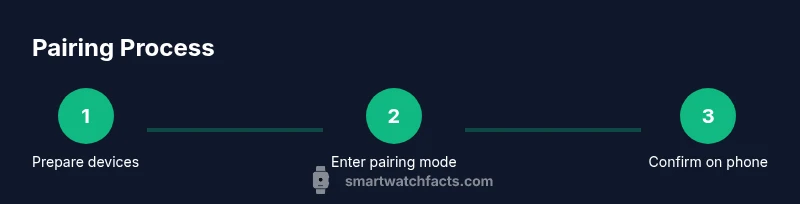
To pair a smartwatch, first charge the watch and unlock your phone. Put the watch into pairing mode using its on-screen prompts (steps vary by model). On your phone, open Bluetooth settings, choose the watch from the available devices, and confirm the pairing code if prompted. Follow any on-screen setup prompts to finish.
Why pairing mode matters
Pairing mode is the bridge that connects your smartwatch to your phone. As you search for instructions on how to put smart watch in pairing mode, you'll notice that the exact steps vary by brand and model. The core idea is simple: make the watch discoverable via Bluetooth and let the phone initiate the handshake. By understanding this, you can troubleshoot when a device refuses to appear in the list or requests a code. In practice, starting the pairing process early—while both devices are charged and nearby—reduces friction and speeds up setup. Smartwatch Facts Analysis, 2026, notes that when users follow the official prompts and keep devices within range, the pairing experience is typically smoother and more reliable. This section will walk you through the concept, common prompts, and practical tips you can apply to any brand. The goal is to help you reach a stable connection quickly so you can focus on personalization, notifications, and health-tracking features.
Model-specific paths to pairing mode
Different watches expose pairing mode in different ways. Here are quick, brand-specific routes to get you started:
- Apple Watch: With the watch on your wrist, press and hold the side button until you see the pairing screen. Keep it close to your iPhone, then open the Watch app on iPhone to start pairing.
- Samsung Galaxy Watch: Start on your phone, open the Galaxy Wearable app, and tap Start pairing. The watch will display a pairing code or animation to confirm.
- Fitbit and Garmin: Typically require you to open the companion app and choose Pair a device, then follow the on-screen prompts to place the watch in pairing mode.
- Generic Bluetooth pairing: If your watch isn’t tied to a dedicated app, you can often enter pairing mode by navigating to Settings > Bluetooth on the watch, then selecting the watch from the list on your phone.
Important: model prompts differ. If you don’t see your device listed, return to the watch’s settings or app and retry. The key is to keep both devices within a short distance and avoid heavy interference. According to Smartwatch Facts, pairing success improves when you start with a powered-on, fully charged watch and phone, and when you avoid screens locked behind a login.
What you need before you begin
Before you attempt to put your watch in pairing mode, gather a few essentials to prevent mid-process stalls:
- A charged smartwatch (50%+ recommended)
- A smartphone with Bluetooth enabled and the latest OS updates
- The official companion app for your watch (if required by the brand)
- A stable, quiet environment free of heavy interference
- Your account credentials for the companion app or phone (if required)
Having these on hand reduces back-and-forth and ensures you can respond to prompts quickly. Also consider having the watch nearby a charger so you don’t run out of power during setup. In practice, the steps are quick, but a dead battery can interrupt the flow and cause you to restart the process. The Smartwatch Facts team suggests starting with a fresh battery and a clean screen to avoid accidental screen locks during pairing.
Step-by-step general workflow
The general workflow for putting a smartwatch into pairing mode follows a consistent pattern across brands, with minor UI variations. Start by ensuring your phone’s Bluetooth is on and that both devices are near each other. On the watch, activate pairing mode according to the device’s menu (see brand-specific paths). Then, on the phone, select the watch from the list of available devices and confirm any prompts or codes. If the watch asks for location permission or access to notifications, grant these to facilitate features like call and message alerts. Finally, complete any on-screen setup in the companion app if required and verify the connection by checking the watch’s face or notifications.
From a user-experience perspective, aim for a calm setup environment. If you’re constantly moving or the devices are in motion, Bluetooth handshakes can fail or time out. Practically, give both devices a moment to settle after initiating pairing and retry once more if needed. Smartwatch Facts notes that taking a deliberate, patient approach typically yields a clean connection on the first attempt.
Handling cross-brand differences: Android vs iPhone
Android and iPhone ecosystems handle pairing slightly differently, which can affect how quickly pairing succeeds. On Android, you’ll often pair through Bluetooth settings or a device-specific app, and you may see prompts to enable location services for discovery. On iPhone, pairing frequently occurs through the Watch app or a companion app, with Apple-specific prompts and sometimes stricter security checks. If your watch supports cross-platform pairing, the device may require additional permissions for notifications, health data sharing, or app integration. Always start by ensuring Bluetooth is enabled on the phone and the watch is in pairing mode. If you encounter a compatibility warning, consult the brand’s official support pages to confirm OS requirements and app versions.
The Smartwatch Facts team recommends checking for firmware updates on both devices before starting. New updates can resolve bugs that make pairing flaky and improve overall stability.
Common problems and quick fixes
Pairing issues are common, but most are easy to fix with a quick retry. If the watch doesn’t appear on the phone, ensure both devices are in pairing mode and within 1–2 meters. Restart Bluetooth on the phone, toggle Airplane mode off, and re-attempt. If the pairing code mismatches, re-enter the code or cancel and retry the pairing session. Some watches require you to accept a pairing request in the watch itself; make sure you respond promptly. If the process stalls, restart both devices and try again. Finally, if the watch asks for permissions, grant them; missing permissions can prevent data syncing after pairing. These steps resolve the majority of connection hiccups.
As a precaution, avoid attempting to pair in environments with heavy Wi-Fi interference or multiple Bluetooth devices nearby, which can confuse the pairing handshake.
Privacy, security, and data sync tips
Pairing securely relies on a device-to-device handshake that creates a trusted connection. Only pair with your own devices, and avoid pairing in public or shared spaces where someone could impersonate your watch. Review the permissions requested by the companion app and disable anything unnecessary. After pairing, you may be prompted to enable notifications, health data sharing, or location services—set these according to your privacy preferences. To maintain data integrity, keep the watch’s firmware and the phone’s OS up to date, and periodically review connected devices in Bluetooth settings to remove any old or unused pairings. Following these safety practices helps protect your privacy while keeping your smartwatch experience seamless.
Authority sources
- Official Bluetooth information: https://www.bluetooth.com/learn-about-bluetooth/bluetooth-technology/
- NIST Bluetooth resources: https://www.nist.gov/topics/bluetooth
- Tech publication overview: https://www.cnet.com/how-to/how-to-pair-bluetooth-devices/
Tools & Materials
- Smartwatch(Fully charged or near 50%+ before pairing)
- Smartphone with Bluetooth(Bluetooth enabled and OS up to date)
- Watch charging cable/charger(Optional if the watch needs charging)
- Companion app (if required by brand)(Install in advance for smoother setup)
Steps
Estimated time: 10-15 minutes
- 1
Prepare devices
Charge both devices and turn on Bluetooth. Unlock the phone and place it near the watch to avoid interference. Confirm you have the latest OS and the official app if required.
Tip: Have both devices on a flat surface to prevent accidental interruptions. - 2
Enter pairing mode on the watch
Navigate to the watch’s settings or use the side button, depending on the model, to initiate pairing. You should see a pairing screen or animation on the watch face.
Tip: If you’re unsure where pairing mode is, consult the watch’s user guide for model-specific steps. - 3
Initiate pairing from the phone
Open Bluetooth settings on the phone and look for the watch in the list of available devices. Tap the watch to start the pairing handshake and follow prompts.
Tip: If the watch doesn’t appear, retry from the watch settings or restart Bluetooth on the phone. - 4
Confirm codes and permissions
If a code appears on both devices, confirm it on both sides. Accept any permission prompts the watch or app requests, such as notifications or location access.
Tip: Do not skip confirmations; they ensure a secure connection. - 5
Complete app-based setup (if required)
Open the companion app and complete any brand-specific setup steps, such as enabling health features, notifications, or accounts syncing.
Tip: Skip non-essential permissions if you’re concerned about privacy. - 6
Verify connection and sync
Check that the watch shows to receive notifications and health data correctly. Confirm time and date sync, and test a quick notification by sending a message.
Tip: If data doesn’t sync, re-enter pairing or reinstall the app.
People Also Ask
What does pairing mode do on a smartwatch?
Pairing mode makes the watch discoverable by Bluetooth so the phone can establish a secure connection. It enables the initial handshake and prompts you to confirm codes or permissions during setup.
Pairing mode makes your watch visible to your phone so they can connect securely.
How long does pairing usually take?
Most pairings complete within a few minutes when you follow the prompts and keep devices close. If it stalls, retry from the start and ensure both devices are charged.
Pairing typically takes a few minutes; if it stalls, restart and try again.
Do I always need the companion app to pair?
Some brands require the companion app for final setup, while others pair via Bluetooth settings alone. Check the brand’s instructions to confirm.
Some watches need the app for setup; others pair directly over Bluetooth.
Why can’t my watch find my phone?
Ensure Bluetooth is on, both devices are in pairing mode, and they are within range. If needed, restart Bluetooth or reboot one device and retry.
Make sure Bluetooth is on and the devices are close; retry if needed.
Is pairing secure?
Yes. Pairing uses a secure handshake and a code when shown on both devices to verify authenticity. Always pair with your own devices.
Yes, the connection is secured by a code and authentication.
Can I pair multiple watches to one phone?
Some phones and watches support multiple pairings, but only one active connection at a time. You may switch devices in the Bluetooth settings or app.
You can pair more than one watch, but only one is active at a time.
Watch Video
Key Points
- Charge both devices before starting
- Enter pairing mode on the watch correctly
- Select the watch on the phone and confirm prompts
- Install and use the companion app if required
- Test the connection and basic functionality after pairing