How to Add a Smartwatch to Google Fit: Step-by-Step
Learn how to add your smartwatch to Google Fit with practical steps, troubleshooting, and privacy tips. This guide covers Android and iPhone setups, common issues, and how to verify syncing for accurate activity data in Google Fit.


You can add a smartwatch to Google Fit by linking the watch’s companion app or the Google Fit app, granting the necessary permissions, and enabling data sharing for activities, workouts, and heart rate. This quick guide outlines prerequisites, the linking process, and basic troubleshooting on Android and iOS.
Understanding Google Fit compatibility and prerequisites
Connecting a smartwatch to Google Fit centralizes your activity, workouts, heart-rate, and health data in one place. Before you begin, confirm that your watch can share data with Google Fit and that you have a Google account active on your phone. According to Smartwatch Facts, most modern wearables can integrate with Google Fit either through the watch’s own companion app or directly through Google Fit, depending on the device ecosystem. This compatibility matters whether you use an Android phone, an iPhone, or a cross-platform setup. The goal is to create a reliable data stream so your steps, workouts, and sleep metrics appear consistently in Google Fit. With proper permissions and setup, you can view a unified health profile across apps and services that support Google Fit.
Prerequisites before linking your smartwatch
- A compatible smartwatch (Wear OS, Samsung, Fitbit, or others) capable of sharing data with Google Fit via its companion app or Google Fit itself.
- A smartphone with Google Fit installed and an active Google account.
- An internet connection (Wi‑Fi or mobile data).
- Bluetooth enabled on your phone and watch, plus the watch charged or plugged in during setup.
- The watch’s companion app installed and updated to the latest version.
This setup ensures the data bridge between your watch and Google Fit is ready to transmit activity, heart rate, and workout statistics.
How data flows between watch, apps, and Google Fit
When you link your watch to Google Fit, data typically flows in one of two ways: (1) through the watch’s companion app that shares metrics with Google Fit, or (2) via Google Fit directly collecting data from the wearable ecosystem. The result is a centralized activity feed that can include steps, distance, calories, workouts, and heart-rate trends. Understanding this data flow helps you troubleshoot issues, especially if you notice gaps or duplicates. If your watch supports automatic synchronization, you may only need to enable permissions once; otherwise, you’ll perform a manual sync periodically.
Step-by-step user flow overview for linking data (high-level)
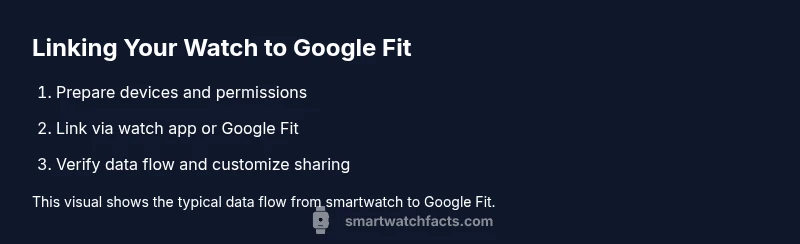
This section outlines the typical user flow you will experience when connecting a smartwatch to Google Fit. It helps you anticipate where to look in both your phone and watch apps, and what permissions to grant to ensure the data import runs smoothly. Be aware that some brands require you to authorize sharing within the watch’s app, while others rely on Google Fit’s own permissions screen. Regardless of the path, the end goal is a continuous data stream that accurately reflects your daily activity.
Common issues and troubleshooting during setup
If data isn’t appearing in Google Fit after pairing, start with basic checks: ensure Bluetooth is active, the watch is charged, and both devices are connected to the internet. Verify that Google Fit has permission to access device sensors, activity data, and health information in your phone’s privacy settings. Some users encounter delays due to offline syncing or app refresh requirements; in those cases, force-close Google Fit, reopen the app, and perform a quick activity to trigger a sync. For Wear OS devices, confirm the Google account used on the watch matches the one on the phone.
Tips to maximize data syncing and privacy
- Keep Bluetooth on during the initial setup and whenever possible during daily use to maintain a steady data link.
- Review permission settings in both Google Fit and your watch’s companion app to ensure heart-rate, workouts, and activity data are enabled for sharing.
- Turn on automatic syncing if your device supports it, but check battery usage and adjust as needed to balance accuracy and battery life.
- Periodically verify that Google Fit reflects your activities accurately by cross-referencing with the watch app or activity logs.
Differences between Wear OS and third-party devices
Wear OS watches often connect smoothly with Google Fit through native integrations, providing a seamless data flow for steps, heart rate, and workouts. Third-party devices may require the manufacturer’s app as the bridging app, plus permissions in Google Fit. In some cases, data fields or terminology may differ (e.g., workouts vs. activity sessions) but the underlying goal remains the same: a unified health dataset. If you switch devices, you may need to reauthorize data sharing and adjust your sync settings accordingly.
Security and data privacy considerations when linking to Google Fit
Linking a wearable to Google Fit involves sharing personal health metrics, so review privacy settings and app permissions before enabling data sharing. Use strong authentication for your Google account and regularly audit which apps have access to your health data. Opt for the least-privilege permissions required for syncing, and disable data sharing with apps you no longer use. Smartwatch Facts notes that thoughtful permission management helps protect your privacy while preserving the benefits of centralized health tracking.
How to verify data in Google Fit after setup
Open Google Fit and navigate to your Profile or 'My data' section to review the data streams from your watch. Check the Activity, Heart Rate, and Workouts tiles to confirm recent entries align with what you performed. If you notice anomalies, adjust the data-sharing settings in both Google Fit and your watch’s app, and consider re-running a short activity to verify the feed is active. Long-term, monitor for any gaps during high-activity days and perform a quick sync if needed.
What to do if data doesn’t appear (step-by-step quick checks)
First, verify that the watch is paired and has permission to share data with Google Fit. If data still isn’t showing, try signing out of Google Fit and signing back in, then re-link the watch within the watch’s app. Ensure you have a stable internet connection, and restart both devices if the issue persists. If problems continue, check for software updates for both the watch and the Google Fit app, since updates often fix data syncing bugs.
Tools & Materials
- Android smartphone or iPhone with Google Fit installed(Ensure you have an active Google account and the latest Google Fit app version.)
- Smartwatch with compatible companion app(Install and update the watch’s official app (e.g., Wear OS, Samsung Health, Fitbit) prior to linking.)
- Stable internet connection(Wi-Fi or cellular data is needed for initial linking and periodic syncing.)
- Bluetooth enabled on phone and watch(Keep Bluetooth on during setup and for ongoing syncing when possible.)
- Google Fit permissions set to share data(Allow access to activity data, heart rate, workouts, and sensor data.)
- Watch charged or charging(Ensure it has enough battery during the linking process to prevent interruptions.)
Steps
Estimated time: 15-25 minutes
- 1
Prepare devices
Charge your watch, turn on Bluetooth, and ensure your phone has a stable internet connection. Open Google Fit and the watch’s companion app to confirm both are ready to connect. This initial preparation minimizes mid-process interruptions.
Tip: If you plan to test immediately, wear the watch during setup to verify live data flow. - 2
Open Google Fit and access Settings
On your phone, launch Google Fit, then go to your profile and open Settings. Look for options like Manage connected apps or Data sharing to begin linking. This is where you authorize data to flow from your watch to Google Fit.
Tip: If you don’t see a direct link option, check the watch’s app for a Google Fit integration toggle. - 3
Grant necessary permissions
Enable permissions for activity data, heart rate, and workouts. Confirm that Google Fit can access sensors and background data. Permissions ensure consistent syncing and accurate metrics.
Tip: Review privacy prompts carefully; limit data to what you actually want shared. - 4
Link the watch via its companion app
In the watch’s app, choose the option to connect with Google Fit or share data with Google Fit. Follow prompts to sign in and authorize data sharing.
Tip: If a code or pairing prompt appears, enter it exactly as shown to complete the link. - 5
Confirm data flow in Google Fit
Return to Google Fit and verify that data streams from the watch appear, such as steps, workouts, and heart rate. Test a short activity to see real-time syncing.
Tip: Refresh the Google Fit data screen if new entries don’t appear immediately. - 6
Adjust data types and defaults
In Google Fit settings, customize which data types are shared (e.g., daily steps, workouts, heart rate). Set defaults for automatic syncing.
Tip: Disable data types you don’t want to track to avoid clutter or privacy concerns. - 7
Run a random activity test
Do a quick walk or jog while ensuring the watch and Google Fit remain connected. Check the Google Fit history afterward to confirm entries.
Tip: Carrying out a short test helps catch issues before long-term use. - 8
Maintain and troubleshoot
Keep apps updated, monitor battery impact, and periodically re-check permissions in both apps. If a problem arises, restart devices and re-run the linking flow.
Tip: Document any persistent issues and consult support forums or the brand’s help center.
People Also Ask
Do I need a Wear OS watch to use Google Fit syncing?
No. Google Fit can sync with many watches via the manufacturer’s app or Google Fit, depending on the device ecosystem. Check your watch’s documentation for supported integrations.
No—many watches can sync with Google Fit through their own apps or Google Fit itself.
Will my iPhone sync with Google Fit?
Yes, Google Fit supports iOS. Install the Google Fit app on your iPhone and link compatible wearables through the app or your watch’s iOS companion.
Yes, Google Fit works with iPhones when you install the app and connect a compatible wearable.
Can I choose which data types are shared with Google Fit?
Yes. In Google Fit settings, you can enable or disable data types such as steps, workouts, and heart rate to tailor what is synced.
You can selectively share data types in Google Fit settings.
Why is my activity not syncing after setup?
Check permissions, confirm the watch is paired, ensure both devices have internet, and try a quick activity test. If problems persist, re-link the device in the watch’s app.
First, verify permissions and pairing, then re-link if needed.
How long does it take for data to appear after syncing?
Data usually appears within minutes, but occasional delays can happen due to network or app refresh cycles. Be patient and refresh if needed.
Most data shows up in a few minutes; refresh if it doesn’t appear.
Is there any privacy risk when linking a smartwatch to Google Fit?
Any health data sharing has privacy implications. Review permissions, use the least-privilege settings, and regularly audit connected apps.
Review permissions and keep data sharing to what you truly need.
Watch Video
Key Points
- Enable data sharing to Google Fit for unified health tracking.
- Follow device-specific linking steps to avoid permission issues.
- Verify data appears and adjust data types for privacy and clarity.
- Regularly check for app updates to maintain compatibility.
- Troubleshoot with a quick activity test to confirm syncing.