Why Does My Smartwatch Disconnect From My Phone? Quick Guide
This guide helps you diagnose and fix why your smartwatch keeps disconnecting from your phone, covering Bluetooth, software, and battery issues for iPhone and Android.


Why does my smartwatch keep disconnecting from my phone? Most often the culprit is Bluetooth instability, outdated firmware, or low battery on either device. Start with a quick reboot of both devices, toggle Bluetooth off and on, and re-pair. If it persists, update OS versions and check for power-saving settings that may interrupt the connection.
Common Causes of Disconnects
Bluetooth instability is the most frequent reason your smartwatch drops the connection to your phone. Interference from other wireless devices, walls, or being at the edge of range can cause short, repeated disconnects. Software versions on both devices also matter: an old watch OS or phone OS may have bugs or missing optimizations that complicate pairing. Battery health matters too: a watch or phone that’s nearing empty can drop connections as part of power-saving behavior. Finally, be mindful of settings like adaptive brightness, background activity limits, and “smart power” modes that throttle wireless radios. Keeping both devices updated and charging them adequately reduces these issues.
Quick Checks: Make These First
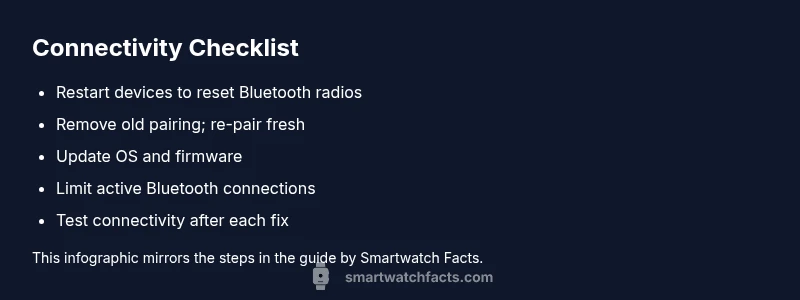
Before diving into deeper fixes, perform the simplest steps first. Restart both devices to reset radios and caches. Toggle Bluetooth off, then back on, and re-pair the devices. Verify the watch is connected to the correct phone profile and that airplane mode is not enabled on either device. If you use a lot of other Bluetooth accessories, temporarily disconnect them to test if interference is the culprit.
Re-Pairing and Network Trust
Re-pairing establishes a fresh trust between devices. Remove the watch from your phone’s Bluetooth paired device list, then reset the watch's network settings if available. Reboot again and start the pairing process from scratch. Ensure you grant necessary permissions and avoid pairing with multiple phones at once, which can confuse the connection manager. After re-pairing, monitor the connection for a period to confirm stability.
Advanced Troubleshooting: OS, Apps, and Accessories
Sometimes the issue is due to OS-level bugs or background apps that drain the Bluetooth radio. Check for pending firmware updates for both devices and install them. Disable or adjust background refresh for fitness and notification apps on the watch and phone. Inspect accessories like wireless earbuds, car kits, or gym equipment that could emit interfering signals. If you recently installed a new app or widget on either device, try disabling it to see if that improves stability.
When to Seek Help and How to Prevent Recurrence
If problems persist after updates and re-pairing, contact customer support or visit an authorized service center. There could be a hardware fault in the Bluetooth module or a known software issue requiring a deeper fix. For prevention, enable automatic OS updates, keep devices charged, and routinely reset wireless pairings periodically. Consider reducing the number of connected Bluetooth devices to minimize channel contention.
Practical Prevention: Create a Stable Habit
Set a routine to keep devices refreshed: schedule monthly checks for OS updates, clear outdated paired devices from the Bluetooth list, and test connectivity after completing charging sessions. Use a single primary phone pairing per watch and avoid heavy background app usage during workouts. These steps help maintain a reliable link and reduce future disconnects.
Steps
Estimated time: 20-40 minutes
- 1
Verify device readiness
Charge both devices to at least 50%, ensure they are not in Do Not Disturb mode and are near each other. This ensures the hardware is ready for a stable pairing.
Tip: Keep both devices in airplane-free mode during setup - 2
Restart both devices
Power off the watch and phone, wait 15 seconds, then power them back on. A fresh boot clears cached Bluetooth states.
Tip: Do not skip the 15-second pause for a clean reset - 3
Toggle Bluetooth and re-pair
Turn Bluetooth off on both devices, wait a few seconds, then turn it back on and initiate a fresh pairing.
Tip: Pair from the watch app opening to ensure correct device selection - 4
Check for updates
Open the watch and phone settings and install any pending OS or firmware updates. Updates often fix connectivity bugs.
Tip: Even minor version updates can improve stability - 5
Test with minimal accessories
Disconnect other Bluetooth devices temporarily and test the watch’s stability with only one phone paired at a time.
Tip: If it works with one device, add devices back gradually - 6
Reset network settings
If available, reset the watch’s and/or phone’s network settings to clear stale Bluetooth keys.
Tip: Note: You may need to re-enter Wi‑Fi passwords after reset - 7
Monitor and adjust
Use the watch for daily activities and monitor for disconnects. If issues recur, proceed to a deeper diagnostic or professional help.
Tip: Log times and conditions when disconnects occur - 8
Consider professional help
If the problem persists after all steps, seek official support or service center evaluation for hardware fault.
Tip: Warranty coverage may apply for Bluetooth module failures
Diagnosis: Smartwatch frequently disconnects from phone during routine use or while moving around
Possible Causes
- highBluetooth interference or weak signal
- mediumOutdated firmware on watch or phone
- lowPower-saving or network settings throttling radios
- lowBattery saving on devices causing random resets
Fixes
- easyRestart both devices to reset Bluetooth radios
- easyToggle Bluetooth off, wait, then on; re-pair devices
- easyUpdate watch and phone OS to latest versions
- mediumReset network settings on watch/phone if available
- easyReduce interference by turning off other Bluetooth devices
- hardFactory reset as a last resort if issues persist
People Also Ask
Why does my smartwatch disconnect only when I move around or go out of range?
Range and interference cause most movement-related disconnects. As you distance from the phone or pass through interference, the Bluetooth signal weakens, leading to drops. Keeping devices within range and removing competing Bluetooth sources helps.
Movement can cause disconnects due to Bluetooth range and interference. Stay within range and limit other Bluetooth devices.
Can outdated OS on my phone or watch cause disconnects?
Yes. Firmware and OS updates include connectivity fixes. Ensure both devices are on the latest available versions to minimize bugs that lead to drops.
Outdated OS can cause disconnects; update both devices for fixes.
Do I need to reset to factory settings to fix disconnects?
Factory resets are a last resort. They can fix persistent issues but erase data. Try re-pairing and network resets first.
Factory resets are a last resort and erase data.
Will turning off other Bluetooth devices around me help?
Yes. Interfering devices can cause drops. Temporarily disable or unpair extras while testing connectivity.
Yes, nearby devices can cause interference; test with fewer BT devices.
Should I contact support if nothing works?
If issues persist after updates and re-pairing, contact brand support or visit an authorized service center for hardware diagnostics.
If it still fails after fixes, seek official support.
Can I improve battery life to stabilize connectivity?
Improved battery health reduces the chance of power-saving mode interrupting Bluetooth. Keep devices charged and avoid extremes in battery levels.
Better battery health helps stability; keep devices charged.
Watch Video
Key Points
- Stay current on OS updates and firmware
- Re-pair devices to reset trusted connections
- Limit active Bluetooth devices to reduce interference
- Follow a step-by-step fix before factory resets
- Seek professional help if symptoms persist