Why Your Smartwatch Isn’t Connecting to Your Phone
Urgent, practical steps to fix smartwatch-phone pairing issues. Learn common causes, checklists, OS nuances, and how to prevent future disconnects with clear, actionable guidance.


The most common cause is a simple pairing error or out-of-date software. Start by turning Bluetooth off/on on your phone, then forget the watch in the companion app and re-pair from scratch. Ensure both devices are near, restarted, and on the latest software. If the issue persists, continue with the full diagnostic flow below for deeper fixes.
Common Causes Behind Connection Issues
According to Smartwatch Facts, most smartwatch-to-phone pairing problems arise from a few predictable culprits rather than mysterious hardware faults. The first is a misstep during the initial pairing process, such as attempting to pair while Bluetooth is unstable or while another device is actively connected. Second, software versions on either device can drift out of sync, causing compatibility hiccups that feel like a hardware failure. Interference from wireless networks, thick case materials, or being too far from the phone can also interrupt the handshake. Finally, app permissions or background activity restrictions on the phone can block the pairing service from negotiating a stable link. By identifying these common causes, you can triage quickly and avoid unnecessary resets. The goal is to restore a clean, direct connection that stays reliable over time.
Check Your Basics: Battery, Proximity, and Permissions
Moving beyond the obvious, there are practical checks that often solve the issue without deep troubleshooting. First, confirm both devices are sufficiently charged — a weak battery can trigger intermittent Bluetooth behavior or delayed handshakes. Ensure the phone and watch are within a short distance (a few feet) with no physical barriers between them. On the phone, verify that location services and any necessary Bluetooth permissions are enabled for the pairing app. Some wearables rely on location access to facilitate secure BLE scanning. If you’ve enabled battery saver modes, temporarily disable them for pairing, as aggressive power management can interfere with background Bluetooth activity. These small adjustments frequently resolve stubborn, “not pairing” symptoms.
Compatibility and App Pairing: Which App Handles the Connection
Most smartwatches rely on a dedicated companion app to manage pairing, firmware updates, and data sync. If the app isn’t up to date, or if you’ve installed an alternative launcher pixel-for-pixel, the pairing flow can fail. Check that you are using the official app from the device manufacturer, and confirm it has the latest version. Some phones require enabling advanced pairing modes within the app (such as BLE-only or classic Bluetooth). If you’ve previously paired with another watch or a different phone, make sure the device you’re attempting to pair is removed from the old account. In some ecosystems, you may need to re-create a user profile or re-log in to sync settings properly.
Bluetooth Health: Reset, Re-pair, and Forget
When basic checks fail, a clean slate pairing often works. Start by turning off Bluetooth on the phone, then on again. On the watch, trigger a full reset of the Bluetooth pairing status or use the app’s “Forget device” option. Reboot both devices before attempting a fresh pairing. If available, use the watch’s own reset for Bluetooth alongside the app’s reset step to guarantee the previous pairing data is cleared. After reboot, initiate pairing from the watch’s pairing screen and follow the on-screen prompts in the official app.
OS-Specific Tips: iOS vs Android Pairing Quirks
iOS and Android handle watch connections with distinctive quirks. On iPhone, ensure the watch appears in the Bluetooth list, then verify the watch is listed as a trusted device in the iOS settings. Some iOS updates introduce stricter privacy prompts around Bluetooth connections, requiring you to grant permissions for the pairing app. On Android devices, you may need to grant location permission for BLE scanning and ensure the device isn’t constrained by battery optimization settings. In some cases, the watch must be re-paired after a system update from either side. Understanding these OS-specific nuances helps you tailor the steps precisely for your setup.
When to Contact Support: Professional Help
If you have exhausted the basic and OS-specific steps without success, it’s time to seek professional assistance. Contact the device manufacturer’s support with details about your phone model, watch model, OS version, and the exact steps you’ve taken. In some cases, hardware faults or a firmware rollback may be required, which a support technician can guide you through. If data loss is a concern, ask about preserving your activity history before a reset or firmware update. Smartwatch Facts recommends documenting your issue early to speed up the diagnostic process and ensure your device remains protected.
Preventative Maintenance for Future Reliability
Preventing future disconnects is easier than you might think. Keep devices updated to the latest firmware and app versions, and periodically review app permissions related to Bluetooth and location. Avoid pairing multiple devices to the same watch simultaneously; remove old pairings from the app’s device list. Moderate heat and direct sunlight can affect sensors, so store and charge your watch in a cool, ventilated area. Regularly check cables and chargers for wear and replace damaged components promptly. Finally, perform a lightweight reset and re-pair after major OS updates to ensure compatibility.
What Smartwatch and Phone Settings to Check Regularly
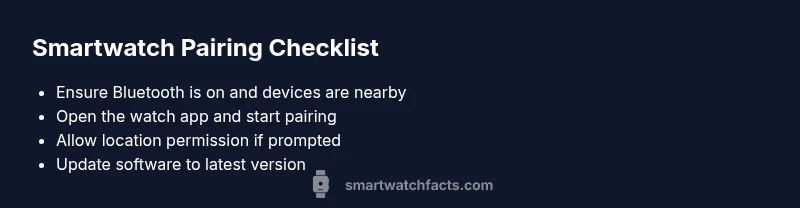
- Ensure Bluetooth remains enabled and the devices are within close range during pairing.
- Keep both devices on the latest OS version and update the companion app.
- Grant any required permissions in both the watch and phone settings.
- Avoid power-saving modes that restrict background Bluetooth activity during pairing.
- Consider a periodic re-pair as a proactive maintenance step if you notice slight lag or disconnections.
Steps
Estimated time: 30-45 minutes
- 1
Check power and proximity
Charge both devices to a healthy level and verify they are physically close, with no obstructions between them. This minimizes interference and ensures the pairing handshake has a clear signal path.
Tip: A quick 5-minute top-up and a short walk-around with both devices near you can reveal proximity issues early. - 2
Toggle Bluetooth and restart
Turn Bluetooth off, wait a few seconds, then turn it back on. Restart both devices to clear any lingering connection states that might block fresh pairing.
Tip: If your phone has a battery saver mode, temporarily disable it during this process. - 3
Forget and re-pair in the app
Open the watch’s companion app, remove or forget the device, and then initiate a new pairing from the watch. Follow the on-screen prompts exactly to complete setup.
Tip: Close other Bluetooth-heavy apps to avoid background interference during pairing. - 4
Update software
Check for firmware updates on the watch, operating system updates on the phone, and an update for the companion app. Install any available updates and retry pairing.
Tip: Restart after updates to ensure changes take effect. - 5
Check permissions and settings
Verify that location permissions, background activity, and notification access are granted for the pairing app on your phone. Some systems require explicit permission to complete BLE pairing.
Tip: If you’re on Android, also check battery optimization settings for the app. - 6
Test with another device
If possible, try pairing the watch with a different phone. If it connects, the issue is likely with your original device settings; if not, the watch hardware or firmware may be at fault.
Tip: This helps isolate the problem quickly without risking data loss. - 7
Reset as a last resort
If all else fails, back up your data and perform a factory reset on the watch or the phone as appropriate, then re-pair. Guard against data loss by saving important information first.
Tip: Avoid frequent resets to minimize data loss risk; use this only when necessary. - 8
Contact support when needed
If pairing still fails after a full diagnostic flow, contact the manufacturer’s support with device models, OS versions, and a log of the steps you’ve taken. They can provide device-specific guidance.
Tip: Having serial numbers and app versions handy will speed up troubleshooting.
Diagnosis: Smartwatch won't pair with phone or keeps dropping the connection after pairing
Possible Causes
- highBluetooth disabled or unstable on phone
- highOutdated firmware on watch or phone
- mediumApp permissions or background activity blocked
- lowInterference or range issues causing handshake failure
Fixes
- easyToggle Bluetooth off, then on again on both devices; restart both devices
- easyForget the watch in the companion app and re-pair from scratch
- easyUpdate the watch firmware, phone OS, and companion app to the latest versions
- mediumReset network permissions or perform a factory reset on watch after backing up data
- easyTest pairing with another phone to isolate whether the issue is device-specific
People Also Ask
Why won't my smartwatch pair with my iPhone?
On iPhone, ensure the watch appears in the Bluetooth list and is trusted. Check iOS privacy prompts related to Bluetooth and ensure the pairing app has the necessary permissions. If needed, re-pair from scratch after restarting both devices.
Make sure the watch is trusted in Bluetooth and re-pair if needed after restarting both devices.
Why won't my smartwatch pair with my Android phone?
Android users should confirm the pairing app has location permissions and is exempt from battery optimization. Update the app and OS, then re-pair from the watch. If problems persist, try pairing with another Android device to isolate the issue.
Check permissions and updates, then re-pair. Try another Android device to isolate the problem.
What should I do if I get a 'pairing failed' message?
First, restart both devices and ensure Bluetooth is enabled. Then forget the device in the app and re-initiate pairing from the watch. If it still fails, verify compatibility and update all software.
Restart, forget, and re-pair. Update all software if it still fails.
Does a factory reset fix connection problems?
Factory resets can fix stubborn issues, but they erase data. Back up first, then reset only if other steps fail and you’ve confirmed data safety.
Only reset if other steps fail and you’ve backed up your data.
Can interference from other devices affect pairing?
Yes. Interference from nearby Bluetooth devices, Wi‑Fi routers, or dense walls can disrupt the handshake. Minimize interference by turning off nearby devices during pairing.
Yes—minimize interference by turning off nearby devices during pairing.
How can I test if the issue is with the watch or the phone?
Try pairing the watch with a different phone. If it connects, the issue is likely with your original phone settings; if it doesn’t, the watch or its firmware may be at fault.
Test with another phone to isolate watch vs. phone issues.
Watch Video
Key Points
- Verify proximity and power before diving deeper
- Re-pair from scratch after forgetting the device
- Keep firmware and apps up to date
- If issues persist, seek official support with details