How to Connect a Smart Watch to Your Phone App
A practical, step-by-step guide to pairing your smart watch with its phone app on iOS and Android, with tips for permissions, maintenance, and troubleshooting to keep notifications and health data syncing reliable.


Learn how to connect a smart watch to its phone app, including setup on iOS and Android, necessary permissions, and common troubleshooting. This quick guide shows you how to pair, customize notifications, and keep your devices syncing reliably for daily use. Whether you’re new to wearables or upgrading, the steps remain the same across most brands.
Why the connection between your smart watch and phone app matters
Connecting a smart watch to its phone app is more than syncing time and steps. It enables notifications, health data, and control over settings from your wrist. According to Smartwatch Facts, the reliability of the watch-to-phone connection often determines the user experience, especially for message alerts and app integrations. In short, the pairing link acts as a bridge between your devices, turning a standalone gadget into a connected wearable that works in harmony with your daily routines.
Beneath the surface, the pairing uses Bluetooth for close-range data exchange and can involve companion cloud services for firmware updates and data sync. The phone app serves as the hub: it programs preferences, stores user profiles, and pushes updates to the watch. Because most features ride on this connection—notifications, fitness tracking, weather, and music control—a stable link reduces missed calls and delayed reminders.
Keep in mind that brands implement features differently. Some watches offer extensive offline capabilities, while others lean on the phone app for GPS data, music, or voice control. The goal is to establish a dependable channel so you can receive calls, messages, calendar reminders, health metrics, and guided workouts without friction.
Platform compatibility and app ecosystems
Most smart watches support both iOS and Android, but the pairing experience varies with the underlying OS and app ecosystem. On iOS, you often rely on the manufacturer's companion app that integrates tightly with the iPhone's notification system. On Android, there may be tighter integration with Google services and broader Bluetooth support. When choosing a watch, verify that the official app is actively maintained and that it supports the latest OS version. If you plan to switch between devices, look for watches that support multi-device pairing or easy unpairing within the app. This section also covers app permissions, background activity limits, and how to keep firmware updates rolling without interrupting use.
What you need before you start
Before you attempt a connect, gather the essentials to avoid mid-process frictions. You’ll need a compatible smartwatch and a smartphone with Bluetooth turned on. Ensure the phone’s operating system and the watch’s firmware are up to date. Download the official companion app from the appropriate app store and verify you have an active internet connection for initial setup and updates. Have a charged battery on both devices so you don’t lose pairing midway, and optionally have the watch charger nearby for final testing.
Step-by-step overview of the connection process
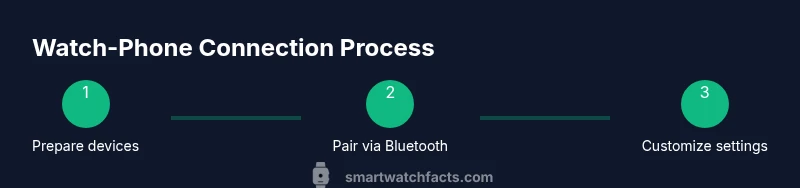
The following steps describe the typical process for most smart watches. Exact prompts may differ by brand, but the sequence is common and reliable. After you complete this, you’ll have a working bridge between your watch and your phone app, enabling notifications, fitness syncing, and more.
Common issues and troubleshooting tips
If pairing stalls or notifications fail to appear, check permissions, confirm the watch is selected in the app's notification settings, and ensure the phone is not in Do Not Disturb mode. Restarting both devices and reattempting the pairing from scratch can resolve many issues. If problems persist, consult the manufacturer’s support resources for model-specific guidance.
Privacy, permissions, and data management
When you pair a watch with a phone app, you grant data access for notifications, health metrics, and sometimes location data. Review the app’s privacy settings and the phone’s system permissions to control what data is shared and with whom. Smartwatch Facts emphasizes that understanding data flow helps protect your privacy while maximizing useful features.
Battery life and sync reliability best practices
To maintain reliable synchronization, keep both devices updated, limit unnecessary background processes, and calibrate battery settings to avoid aggressive power-saving modes that can interrupt background syncing. Regularly check for updates to firmware and the companion app, as these often improve reliability and compatibility.
Tools & Materials
- Smartphone (iOS or Android)(Bluetooth enabled, up-to-date operating system.)
- Smartwatch(Fully charged or near full battery before pairing.)
- Official companion app(Download from the App Store or Google Play; ensure it's the latest version.)
- Bluetooth enabled(Keep Bluetooth ON during pairing and testing.)
- Watch charger(Have it handy for long setup sessions or testing.)
Steps
Estimated time: 15-25 minutes
- 1
Prepare devices
Charge both devices and ensure Bluetooth is enabled. Update the phone OS and watch firmware to the latest versions to minimize compatibility issues. Have a stable internet connection available for initial setup and updates.
Tip: Charge both devices to at least 50% before starting to avoid mid-pair drops. - 2
Install or update the companion app
Open the app store, install or update the watch’s official app, and sign in if required. Some watches use a built-in setup wizard; others rely on a separate account. Make sure the app is allowed to run in the background.
Tip: If you already have the app installed, skip to the next step and check for updates within the app. - 3
Enable required permissions
On your phone, grant the app permissions for notifications, location (if prompted for GPS), and background activity. On iOS, you may need to enable Bluetooth and the app’s access in Settings; on Android, you might adjust Do Not Disturb interactions and battery optimization.
Tip: Permissions ensure seamless data transfer and timely notifications. - 4
Pair the watch via Bluetooth
Follow on-screen prompts in the app to start pairing. Put the watch in pairing mode if required, then select the watch from the list on your phone. Confirm any codes that appear on both devices.
Tip: Keep the devices close during pairing (within a few meters) to avoid dropouts. - 5
Complete in-app setup and customize notifications
Finish the setup wizard in the app, select which apps can send notifications, and tailor watch faces, widgets, and health metrics. Sync preferences may include calendar, calls, and message alerts.
Tip: Disable low-priority notifications if you want to reduce interruptions. - 6
Test the connection and troubleshoot if needed
Send test notifications, check call alerts, and verify health data syncing. If something fails, re-check permissions, re-pair, or restart both devices. Refer to the brand’s support page for model-specific steps.
Tip: If pairing fails, reboot both devices and retry from step 2.
People Also Ask
Is Bluetooth required to pair a smart watch with its phone app?
In most cases, Bluetooth is the initial pairing method to establish the link between watch and phone. Some brands may support alternative methods or require Wi‑Fi for setup, but Bluetooth is the standard starting point.
Bluetooth is usually required to pair your watch with the phone app, though some brands offer alternative methods for setup.
Why am I not receiving notifications on my watch after pairing?
Check that the app has notification permissions, ensure the watch is selected in the app's notification settings, and verify the phone is not in Do Not Disturb mode. Also confirm the watch remains connected and that background activity is allowed.
Make sure notifications are enabled in both the app and system settings, and that the watch stays connected.
Can I pair multiple watches to one phone?
Some apps support switching between devices, but most watches pair one-to-one with a single phone. Check the app’s device management to unpair or remove an old watch before pairing a new one.
Many apps allow switching devices, but typically you pair one watch per phone.
Does internet connectivity affect syncing data?
Initial setup and firmware updates usually require internet. Ongoing notification and health data syncing can work offline when devices stay within Bluetooth range.
Internet helps at setup and updates, but daily syncing can work offline once paired.
Should I reset my watch and phone to fix pairing issues?
Factory resets are a last resort. Back up data, then reset according to the manufacturer’s instructions and re-pair from scratch.
Only reset after trying other steps and backing up important data.
Watch Video
Key Points
- Pair first, then customize notifications
- Keep app permissions current for smooth syncing
- Test connections after updates
- Use official apps for best compatibility