What to Do If Your Smartwatch Won't Connect to Phone
An urgent, practical guide to diagnose and fix smartwatch-to-phone connection problems, with step-by-step fixes, diagnostics, and tips to get you back on track quickly.


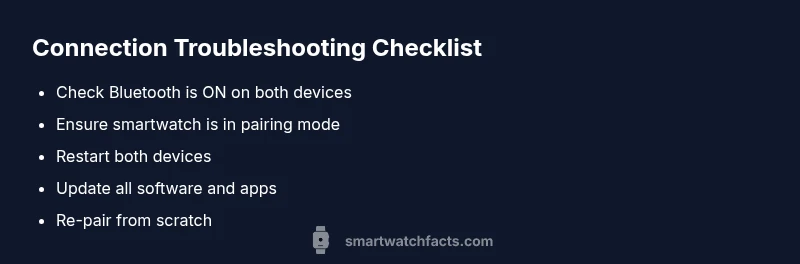
If your smartwatch won’t connect to your phone, start with the basics: turn on Bluetooth on both devices, verify pairing mode on the watch, and restart both the watch and the phone. If the pairing still fails, open the companion app, remove the watch, and re-pair from scratch. Most issues are resolved by re-pairing or a simple reset.
Why connection failures happen
Connection problems between a smartwatch and phone are usually not mysterious. In many cases, Bluetooth interference, outdated firmware, or a misconfigured pairing setting blocks the link. In addition, devices that are trying to connect to multiple phones or have stale pairing data can break the bond. According to Smartwatch Facts, the most common culprits are software glitches, Bluetooth conflicts, and improper pairing sequences. Staying aware of these causes helps you prioritize the fixes that actually move the needle.
When a problem surfaces, remember that the goal is to establish a clean, fresh pairing session. This often means clearing old data from the app, ensuring you’re using the correct device for pairing (some watches only pair to a single phone at a time), and confirming both devices are on compatible software builds. By understanding these dynamics, you can approach the problem with a clear plan rather than random tapping.
Quick checks you can perform now
- Turn on Bluetooth on both devices and make sure the watch is awake and in pairing mode.
- Bring devices within a short distance (ideally within 1–2 meters) to minimize interference.
- Check for iOS/Android OS updates and watch app updates; install any available updates.
- Ensure the watch isn’t currently connected to another phone or device.
- If you recently restored or reset a device, re-check pairing from the start instead of resuming an old session.
If these steps don’t work, move to the diagnostic flow below and consider a step-by-step re-pairing procedure.
Diagnostic flow you can follow
This flow helps you identify the root cause without guessing. Start with the simplest fixes and work toward more involved ones. If you reach a hard fix (like a factory reset), back up important data first and be prepared for a longer recovery process.
- Is Bluetooth enabled on both devices? If no, enable and retry.
- Is the watch in pairing mode? If not, trigger pairing according to your watch’s manual.
- Are there OS/app updates pending? If yes, install and retry.
- Does the watch pair with another phone? If yes, the problem may be with the phone profile or app data.
- Still no luck? Proceed to step-by-step fixes.
Step-by-step fixes for the most common causes
- Basic re-pairing (easy): Remove the watch from the phone’s Bluetooth list, unpair in the companion app, restart both devices, and initiate a fresh pairing. Tip: Do not rush the pairing process; let each device fully boot before retrying.
- Clear app data and re-sync (easy): In the phone’s settings, clear the smartwatch app cache/data, relaunch, and re-enter pairing. Tip: Have your login credentials handy for the smartwatch app.
- Update software (easy/medium): Update the watch firmware and the phone OS to the latest versions, then try pairing again. Tip: Some updates require a longer download time on slower networks.
- Check account and permissions (easy): Ensure the smartwatch app has permission to use Bluetooth, location, and storage; revoke and re-grant if needed. Tip: Permissions glitches are common right after OS updates.
- Factory reset (hard): As a last resort, factory reset the watch. This erases data; back up before proceeding. Re-pair from scratch after the reset. Tip: Only perform if all other steps fail and you’ve secured a data backup.
TIPS & WARNINGS
- Do not perform factory resets casually; backing up data is essential.
- If your watch still won’t connect after multiple re-pairs, verify compatibility between OS versions and watch model.
- Be mindful of battery life; perform fixes when both devices are sufficiently charged.
Safety note: Avoid opening hardware or attempting unapproved tweaks; contact manufacturer support if you suspect hardware issues.
KEY TAKEAWAYS
- Start with Bluetooth basics and fresh pairing before deep resets.
- Re-pairing resolves the majority of smartwatch-to-phone connection issues.
- Update both devices, then re-test connectivity.
- Document the steps you tried to speed up support if needed.
Steps
Estimated time: 20-30 minutes
- 1
Charge and prepare devices
Ensure both devices are charged and nearby. Turn on Bluetooth on both devices. Access pairing mode on the smartwatch according to its manual.
Tip: A fresh battery reduces pairing failures caused by power management. - 2
Clear old pairing data
On the phone, remove the watch from Bluetooth and delete its entry in the smartwatch app. Restart both devices.
Tip: Removing old data prevents auto-reconnections to a non-existent pairing. - 3
Re-pair from scratch
Open the smartwatch app and start a new pairing session. Follow on-screen prompts to complete the process.
Tip: Keep both devices close and avoid switching apps during pairing. - 4
Update firmware and OS
Check for and install any available updates for the watch, phone, and app. Retry pairing after updates finish.
Tip: Outdated software is a common source of compatibility problems. - 5
Check permissions and settings
Verify the smartwatch app has Bluetooth, location, and storage permissions enabled. Re-try pairing if needed.
Tip: Permissions glitches often follow OS updates. - 6
Factory reset (if needed)
If none of the above work, perform a factory reset on the watch and set up again from zero.
Tip: Back up data first; this will erase all watch data.
Diagnosis: Smartwatch won't connect to phone
Possible Causes
- highBluetooth cannot be enabled or is blocked
- mediumWatch or phone firmware/app is outdated
- lowWatch already connected to another device
- mediumCorrupted pairing data or app glitch
Fixes
- easyTurn on Bluetooth on both devices and ensure the watch is in pairing mode; keep distance short while pairing
- easyRestart both devices and retry pairing through the companion app
- easyUpdate the watch firmware and phone OS, then re-pair from scratch
- hardFactory reset the watch as a last resort after backing up data
People Also Ask
Why won't my smartwatch pair with my iPhone?
iPhone pairing usually involves using the Watch app and ensuring Bluetooth is enabled. Confirm you’re pairing the correct device and that your iOS version supports the watch. If needed, re-install the Watch app.
Make sure Bluetooth is on, open the Watch app, and follow the pairing prompts. If it still won’t pair, update iOS and the watch app.
Why won't my smartwatch connect to an Android phone?
Android devices require Bluetooth and compatibility between the watch and phone. Ensure pairing mode is enabled on the watch, update the Android OS, and verify the watch is listed in the phone’s Bluetooth devices.
Enable pairing mode and Bluetooth, then re-pair in the device’s settings. Check for updates if it still fails.
What should I do if the watch connects but won’t sync data?
Check that the smartwatch app has permission to access data and that the account is linked correctly. Re-sync in the app and ensure background activity isn’t restricted by battery optimization.
Verify permissions and re-sync in the app. Ensure the watch and phone are not in battery saver mode.
Is a factory reset necessary for every issue?
A factory reset is a last resort because it erases all data. Try all other steps first and back up important information before resetting.
Only use a factory reset after you’ve tried everything else and backed up your data.
How long does re-pairing usually take?
Most re-pair sessions take a few minutes. Ensure both devices stay within range and avoid switching apps during pairing.
A quick re-pair usually takes a few minutes if you follow the prompts carefully.
When should I contact support?
If steps fail after 20-30 minutes of troubleshooting and updates, contact support with your watch model, OS versions, and error messages to get targeted help.
If nothing works after trying the steps, reach out with device details for faster help.
Watch Video
Key Points
- Start with Bluetooth basics and fresh pairing.
- Re-pairing fixes most smartwatch connections.
- Update devices before deep resets.
- Back up data before factory resets.