How to Set a Smart Watch in Phone: Step-by-Step
Learn how to pair and configure your smartwatch with your phone across Android and iOS. This comprehensive guide covers prerequisites, app setup, permissions, troubleshooting, and best practices for stable, productive wearable integration.


According to Smartwatch Facts, you can set up a smartwatch with your phone in minutes by following a few clear steps. This quick guide highlights the essential prerequisites, the official pairing app, and the core flow for Android and iOS. With proper permissions and a charged watch, you’ll have reliable notifications, health data, and apps synced in no time.
How to set smart watch in phone: prerequisites and mindset
If you’re wondering how to set smart watch in phone, begin with a clear plan. The pairing experience is faster when both devices run current software, you’ve installed the official companion app, and you’ve charged both devices. According to Smartwatch Facts, starting with the latest OS on your phone and watch reduces friction and prevents mid‑setup drops. Gather your essentials before you dive in: a charged watch, a smartphone with internet access, and your account credentials (Apple ID or Google account). A stable internet connection helps the initial sync of apps and health data. This upfront prep minimizes re-pairing and ensures you can complete the process in one sitting, so you wake up to notifications, calendar events, and activity goals already in place.
Platform differences to expect
Android and iOS devices handle watch pairing differently, especially around notification routing and app permissions. Android tends to offer broader customization through the watch’s own app and third‑party integrations, while iOS emphasizes seamless handoff with Apple Watch models and tighter permission controls. Your choice of model and OS will influence which features you can enable (for example, reply options on messages, default music apps, and quick replies). Acknowledging these differences at the start helps you tailor the setup steps to your device ecosystem and avoid surprises during the pairing flow.
Choosing the official companion app for reliability
Most manufacturers publish a single official app for setup and ongoing management. Smartwatch Facts analysis shows that using the official app minimizes pairing failures, ensures firmware updates are delivered, and keeps notification rules synchronized with your phone. Install the app from the appropriate store, log in if required, and keep your device connected to the internet during the process. The app is also where you’ll configure watch faces, health metrics, and permissions for notifications, location, and background activity. By consolidating controls in one place, you reduce the risk of talking to multiple, conflicting settings screens.
Step-by-step pairing overview (high-level)
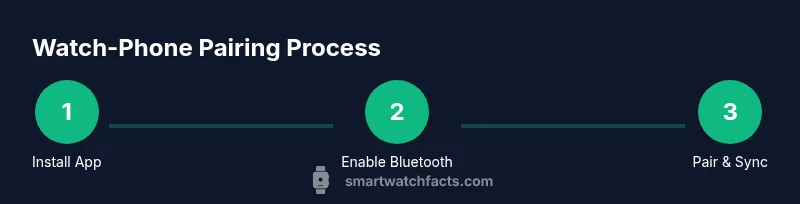
The core flow typically follows a simple progression: install the official app, enable Bluetooth and necessary permissions, place the watch in pairing mode, select the watch in the app, and complete the on-screen setup. If you run into hiccups, close all apps, restart both devices, and retry from the app’s pairing screen. This block sets the stage for the detailed steps that follow, ensuring you know what to expect and how each action moves you toward a successful sync of time, notifications, and activity data.
Prerequisites for a smooth start
Before you begin, make sure your watch is charged to at least 20% so it doesn’t power down during pairing. Keep your phone nearby, with Bluetooth turned on and your Wi-Fi or cellular data active for downloading updates. If you use an enterprise device or a managed phone, check with your IT policy to confirm that Bluetooth and app installation are allowed. Finally, disable any energy-saving settings that might throttle background activity during the initial setup.
The value of a stable pairing environment
A stable pairing environment relies on a few steady factors: consistent power, strong Bluetooth connection, and reliable software on both devices. If you’re syncing health data, ensure you’ve granted core permissions in the app (fitness, location, notifications). You’ll then be able to receive alerts, track workouts, and view health metrics without lag. A well-prepared setup isn’t just about getting the watch to show up on the phone; it’s about creating a reliable, ongoing channel of information between your devices.
Final quick check after setup
Once pairing completes, perform a quick check of core functions: notifications, calendar events, weather, and health tracking. Send a test message, start a workout, and verify that data is feeding from the watch to your phone in real time. If all looks good, consider enabling two‑factor authentication and keeping the apps updated. Remember: a secure, consistently syncing watch is more useful than a feature‑rich device that frequently disconnects.
Tools & Materials
- Smartphone (iOS or Android)(Updated to the latest OS version for best compatibility)
- Official smartwatch companion app(Install from App Store or Google Play)
- Charged smartwatch(Charge to at least 20% before pairing)
- Stable internet connection(Wi‑Fi or mobile data for initial setup and updates)
- Account credentials (Apple ID/Google account)(Needed for sign-in and app permissions)
- Near-by charger and cable(Optional for longer initial setup sessions)
- Instructions or user manual(Helpful for model-specific steps)
Steps
Estimated time: Total time: 15-25 minutes
- 1
Install the official companion app
On your phone, open the App Store or Google Play and install the smartwatch’s official companion app. Launch the app and sign in if prompted, or create an account if needed. The app will guide you through the initial setup and pairing flow, acting as the central control hub for notifications and health data.
Tip: Download only the official app from the store to avoid counterfeit software that can compromise security. - 2
Update the app to the latest version
Check for an app update and install it before attempting pairing. A newer version often improves compatibility, fixes bugs, and supports the latest watch firmware. Keeping the app current helps prevent stubborn pairing errors and ensures you can access new features.
Tip: Enable automatic updates for the app to stay current without manual checks. - 3
Enable Bluetooth and grant permissions
Turn on Bluetooth on your phone and grant the app the necessary permissions (location, notifications, background activity) as prompted. These permissions enable accurate GPS syncing, timely alerts, and reliable connection between the watch and phone.
Tip: If prompted, allow location access only while using the app to minimize privacy concerns. - 4
Put the watch into pairing mode
Put your smartwatch into pairing mode following the model’s instructions—usually via a hardware button, a long press, or a quick toggle in the watch’s settings. The watch will broadcast its Bluetooth signal to appear in the phone’s pairing list.
Tip: If you don’t see the watch, try restarting both devices and retrying from the app’s pairing screen. - 5
Select and pair the watch in the app
In the companion app, locate your watch in the list of available devices and tap to pair. Confirm any on-screen codes on both devices to ensure you’re pairing the correct model. The app will guide you through permission prompts and initial setup steps.
Tip: Keep both devices close during the pairing to avoid a disconnection mid-process. - 6
Complete setup and customize your preferences
Finish the on-screen setup wizard, choose preferred watch faces, alarms, app notifications, and health-tracking options. Sync ongoing data such as steps, heart rate, and sleep analysis. You can adjust notification routing and app access later in the app settings.
Tip: Test notifications right away and tailor alert tones to your environment for better usability.
People Also Ask
What do I need before pairing a smartwatch to my phone?
You’ll need a charged watch, a smartphone with internet access, the official companion app, and your account credentials. Ensure both devices are on compatible OS versions and that Bluetooth is enabled. Some watches may require location permissions for certain features.
Before pairing, make sure your devices are charged, the official app is installed, and Bluetooth is on. Keep both devices near each other during setup.
Why won’t my watch pair with my phone?
Common causes are outdated software, Bluetooth issues, or missing app permissions. Restart both devices, update the app, and reattempt pairing from the app’s pairing screen. If problems persist, consult the manufacturer’s support for model-specific steps.
Pairing failures are usually due to outdated software or missing permissions. Restart, update, and retry from the app.
Can I pair a smartwatch with multiple phones?
Most watches are designed to pair with one primary phone at a time. You can typically unpair from one device and pair with another through the companion app, but data sync may be limited during the switch.
You typically pair with one phone at a time, then switch via the app when needed.
How long does pairing usually take?
Pairing commonly completes within 5-15 minutes, depending on device models and your network connection. If updates are required, it may take longer post-pairing.
Most pairings finish in about ten minutes, but can take longer if firmware updates are involved.
Do I need an internet connection to pair?
An internet connection helps download updates and sync initial data, but the actual pairing can occur over Bluetooth without internet. A stable connection speeds up the process.
You don’t need internet for the basic pairing, but updates and initial sync go faster with connectivity.
How do I switch between Apple and Android devices after pairing?
To switch ecosystems, unpair the watch from the current phone, reset the watch if required by the model, then pair again using the official app on the new device. Some watches preserve data via cloud accounts.
Unpair on the old phone, then re-pair with the new one using the official app.
Watch Video
Key Points
- Prepare both devices with updated software and charged batteries.
- Use the official companion app for reliable pairing and updates.
- Grant necessary permissions and test notifications after setup.
- Keep devices near each other during pairing and check for firmware updates regularly.