How to Put Smart Watch on Time: A Practical Guide
Learn how to put smart watch on time with a practical, step-by-step approach. Learn to sync with your phone, choose the right time source, and verify accuracy across zones for reliable alarms and reminders.


Learn how to put smart watch on time by syncing with your phone or setting the time manually for your model. This guide covers time sources, model-specific steps, and quick checks to keep alarms and timers accurate across zones. Before you start, charge the watch and enable Bluetooth, then follow the steps to verify accuracy.
Why accurate time on your smartwatch matters
In everyday use, accurate time on a smartwatch is more than a convenience—it affects alarms, timers, calendar events, and reminders. If the time drifts, you may miss an appointment, be late for a workout, or have timers trigger at the wrong moment. For travelers, a correct watch face that updates to the local time helps avoid jet-lag style confusion. This section explains what it means for a watch to display the right time and why you should routinely verify it. The phrase how to put smart watch on time is a practical goal you can reach without specialist tools. Most modern wearables support two primary approaches: syncing with your phone’s time or using the watch’s built-in time source. Understanding these sources helps you choose the simplest, most reliable method for your daily routine. The Smartwatch Facts team notes that consistent timekeeping is a foundation for dependable alarms, reminders, and fitness logs, especially when syncing across devices and services. When you’re ready, you’ll perform a quick check and then move to the next steps.
Time sources: system time vs network time
Smartwatches rely on two main sources for their displayed time: the device’s internal clock (system time) and a network time reference that can come from your phone, Wi‑Fi, or cellular data. The internal clock can drift slightly, especially after extended use or during travel. Network time uses accurate references from your phone or online time servers and can automatically adjust for time zone changes. When you choose a source, the watch will periodically resync to stay aligned with real-world time. In practice, travelers often benefit from syncing with the phone’s time, since the phone can update automatically across zones. If you prefer independence or offline operation, you can manually set the time and time zone, but you’ll need to monitor daylight saving and travel changes. Smartwatch Facts emphasizes that regular synchronization reduces alarm drift and keeps activity logs consistent with your calendar. After deciding on your preferred source, you can follow a standard flow that applies to most brands and operating systems.
Preparing for time setup: what you need
Before you touch the watch settings, gather a few practical prerequisites. Ensure the device is sufficiently charged so it won’t shut down during configuration. Have the companion phone nearby with Bluetooth enabled and the official smartwatch app installed and up to date. If you plan to sync with your phone, verify that your country and time zone are correct in your phone settings. A stable internet connection on the phone can help with automatic time updates, especially after travel. You might also want access to the user manual or model-specific support article for any edge cases. The goal is a smooth, uninterrupted setup that preserves alarm accuracy and event timing across devices. Smartwatch Facts notes that prepared setup reduces the chance of future drift and minimizes the need for repeated corrections.
Step-by-step overview for common platforms
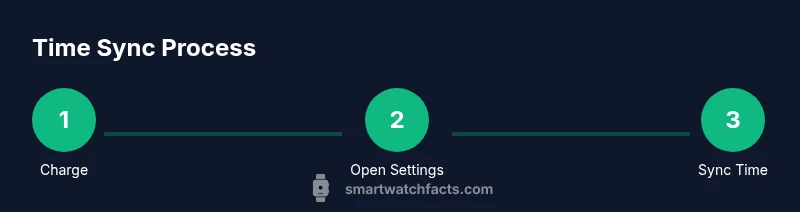
Across most platforms, the core flow to put a smartwatch on time is similar: open the settings, locate Date & Time, and choose a time source. On many watches you’ll see options like “Sync with phone time,” “Set automatically,” or manual entry for time and time zone. If you’re using a connected phone, enabling the sync option often yields the simplest, most reliable result. For standalone use, manually entering the time and selecting the correct time zone is usually straightforward. In this section, you’ll see the high-level path that works on wear OS, watchOS, Samsung Tizen, Fitbit OS, and other ecosystems. For best results, keep your watch in range of your phone during the initial pairing and time sync. The Smartwatch Facts team reminds readers to check that your updates are current after any OS upgrade to preserve time accuracy.
Syncing with your phone’s time vs manual adjustments
A frequent choice is to let the phone’s time drive the watch. When you enable this, the watch reads the time from the phone’s system clock, which is updated by the carrier or network and by the phone’s own settings. Manual adjustments are useful when the watch is offline, you’re traveling, or you’re using a model that doesn’t support automatic syncing. The choice depends on your daily routine: if you regularly switch time zones, automatic syncing minimizes effort. If you’re in a situation with intermittent connectivity, manual mode provides a fallback. In any case, a quick post-setup check—comparing the watch face with a known accurate clock—helps confirm accuracy and reduces the chance of missed alarms.
Time zones, daylight saving, and global watches
Time zones and daylight saving can create occasional drift if not configured correctly. Start by setting the correct local time zone in the watch, then enable automatic updates if available. When traveling, confirm the time zone is set to Local Time rather than a home zone to avoid alarms firing at the wrong hour. Some watches offer “travel mode” or “auto time zone” options, which can simplify this process. If you frequently cross DST boundaries, you may need to adjust the settings yearly or rely on the phone’s time to manage the change automatically. The goal is seamless alignment with your current location so alarms, reminders, and workouts reflect real-world timing.
Troubleshooting: common issues and fixes
If the watch shows the wrong time after a sunset or after a software update, first try a quick resync with the phone or a manual reentry of the time zone. If that fails, verify that the watch’s firmware is up to date, as timekeeping fixes are sometimes included in updates. Battery life can also affect time display if the watch powers down briefly; ensure a healthy charge during any update. Connectivity issues between the watch and phone can prevent successful syncing, so re-pairing the device or restarting both devices often resolves the problem. For persistent drift, deliberate a factory reset only after backing up, since timekeeping behavior is typically restored after re-pairing with the phone.
Best practices for long-term time accuracy
Keep the watch and its companion app updated, as developers frequently release fixes for timekeeping quirks. Regularly verify the time after travel, updates, or significant changes in network time sources. If you notice recurring drift, check the time source setting and re-enable automatic syncing. Consider setting alarms and timers anew after major changes to confirm they trigger at the intended moments. Lastly, document any unusual behavior so you can reference model-specific guidance if needed.
What to know about updates and timekeeping
Software updates can affect how a watch handles time, bounce between time zones, or interpret daylight saving adjustments. After any update, perform a quick sanity check: compare the watch time to a trusted clock, confirm alarms fire as scheduled, and ensure timers count down correctly. If an update introduces a new option for time sync, review the settings to choose the most reliable source for your usage pattern. The overall aim is to preserve accuracy without adding setup steps every week.
Tools & Materials
- Smartwatch(Fully charged or sufficient battery to access settings without interruption)
- Smartphone with Bluetooth and smartwatch companion app(Install and sign in to the official app; keep Bluetooth on during setup)
- Charging cable or wireless charger(Keep nearby in case a quick top-up is needed during setup)
- User manual or model-specific support article(Useful for edge-case settings or platform-specific steps)
Steps
Estimated time: 15-25 minutes
- 1
Charge the watch
Plug in the watch or place it on the charger and let it reach a healthy battery level. A stable power state prevents mid-step shutdowns and ensures the display remains active during the setup flow.
Tip: Aim for at least 50% charge before starting; you don’t want the device to die mid-configuration. - 2
Open Time Settings
Wake the watch, access the Settings app, and locate the Date & Time or Time settings section. This is where you’ll adjust the clock if automatic syncing isn’t active.
Tip: If you don’t see a Time option, use the search or consult the manual for your model. - 3
Choose Time Source
Select whether to sync with your phone/time network or to set the time manually. This choice determines how the watch keeps time going forward.
Tip: Automatic syncing is usually simplest and most reliable for daily use. - 4
Enable Sync with Phone
If you chose phone time, enable the option to pull time from your connected phone and ensure the companion app is open and paired.
Tip: Keep the phone nearby during the first sync to improve reliability. - 5
Force a Time Sync
In the app, trigger a manual sync to force immediate alignment of the watch with the phone’s time source.
Tip: If the option isn’t visible, re-pair the device or restart both devices. - 6
Verify Local Time Zone
Confirm the watch is set to the correct local time zone to prevent future shifts when traveling or crossing DST boundaries.
Tip: If you’re traveling, recheck the zone after arrival. - 7
Test Alarms and Timers
Set a test alarm and a short timer to ensure they trigger at the expected moments.
Tip: If an alarm doesn’t go off on time, re-check the time source and, if needed, reset the alarm. - 8
Save Changes and Exit
Exit the settings after confirming the time is accurate and alarms work properly.
Tip: Document any model-specific steps if you plan to perform this again.
People Also Ask
What is the quickest way to fix a wrong time on my smartwatch?
Start by forcing a sync with your phone or selecting the correct time zone in Settings. If the issue persists, check for a firmware update and re-pair the device if needed.
Try syncing with your phone first, then check the time zone; if it’s still wrong, update the firmware and re-pair the watch.
Can I set the time manually, and when should I do it?
Manual time setting is useful when the watch is offline or you’re in a location without reliable network time. Use it as a fallback when automatic syncing isn’t available.
Yes, you can set it manually when you’re offline or offline-ready; use automatic syncing when you can.
Will changing time affect my alarms or reminders?
Alarms and reminders should reflect the current time after a successful sync. If alarms drift, recheck the time source and test again.
Alarms follow the current time after syncing, so verify with a test alarm.
Is it safe to reset my smartwatch to fix time issues?
A factory reset is a last resort and will erase data. Try re-pairing and updating firmware first. Backup important data if possible.
Only reset if nothing else works and you’ve backed up your data.
Do updates affect timekeeping on wearables?
Software updates can include fixes for timekeeping. After updating, perform a quick time check to ensure accuracy.
Yes, updates can fix timing issues; always verify time after installing updates.
Watch Video
Key Points
- Sync time with your phone when possible
- Choose the right time source for your routine
- Verify alarms after any time updates
- Travelers should recheck time zones after arrival
- Keep devices updated to preserve accuracy