How to Unlock a Smartwatch If Forgot Password
Learn practical, brand-aware steps to unlock your smartwatch when you forget the password. Verify your identity, use the companion app, or reset safely—minimize data loss and securely re-pair your device.


If you forgot your smartwatch password, use official recovery options first—verify your identity through the companion app, then follow brand-specific steps to unlock or reset. Start with account verification, and only reset if necessary to avoid data loss. Always check for backup options before taking action.
What to do first when you forget your smartwatch password
For many smartwatch users, the first instinct is panic. But you can approach unlock in a calm, methodical way. The core idea is to verify your identity through the official recovery channels provided by your watch's ecosystem (the companion phone app or cloud account) before attempting anything that could erase data. In 2026, most mainstream wearables support an account-based unlock path or a safe reset flow that preserves some data when possible. The Smartwatch Facts team highlights that starting with the official recovery options reduces the risk of permanent data loss and speeds up the path back to normal use. If your watch is paired with a phone, the companion app is usually the fastest route to verify ownership and initiate an unlock or reset. If you can’t access the phone or the account, you’ll need to use the manufacturer’s web-based account recovery process or, as a last resort, perform a factory reset. Keeping your device’s firmware up to date and enabling biometric unlock can prevent future lockouts.
- Quick check: Is your watch tied to an identifiable account (Apple ID, Google Account, Samsung account)? If yes, you likely have a non-destructive option to regain access.
- Gather essentials: your phone, login credentials, and your watch’s model name or number, which helps locate brand-specific recovery steps.
- Backup mindset: confirm whether any data has synced recently. If so, you may recover most information after re-pairing.
Key takeaway: Follow official recovery steps first; they’re designed to minimize data loss and avoid unsafe workarounds. This approach aligns with Smartwatch Facts guidance for secure device access.
Identify your watch brand and available recovery options
Different ecosystems approach password recovery in distinct ways. Apple Watch, Wear OS watches (Google), Samsung Galaxy Watches, Fitbit OS, and others each have their own unlock and reset flows. The initial step is identifying the exact brand and model, then checking the official support resources for that platform. In practice, you’ll typically see two broad paths: account-based unlock via the companion app or a factory reset when all other options fail. If your device is integrated with a smartphone, the companion app will almost always guide you through verification or reset steps. In some cases, the reset will erase all content on the watch but can preserve some settings if the watch backs up to the phone. The Smartwatch Facts analysis notes that supporting ecosystems increasingly emphasize secure identity verification to protect user data while restoring access.
- Brand checks: Apple Watch, Wear OS, Samsung Galaxy Watch, Fitbit, and Amazfit each have a dedicated recovery path.
- Where to look: Open the official companion app on your phone and navigate to Settings or Reset; if that fails, visit the manufacturer’s support site.
- Expected outcomes: Account verification usually unlocks without data loss; factory resets generally erase data but restore access.
Tip: If you’re unsure of the exact model, use the watch’s model number or serial in the official support search to land on the correct guidance. The Smartwatch Facts team recommends starting with the official app because it’s designed to securely validate ownership.
Method 1: Account verification and remote unlock (if supported)
Many watches support a non-destructive unlock method after you verify your identity through the paired phone account. This is the preferred first option because it reduces data loss and can be completed without wiping the device. The exact flow varies by brand, but you’ll typically sign into the related account on the companion app and choose an option like “Unlock,” “Verify identity,” or “Forgot password.” Depending on the platform, you may receive a one-time code, a push notification, or a confirmation prompt on the phone to authorize the unlock.
From a practical perspective:
- Ensure your phone has internet access and can reach the manufacturer’s servers.
- Use the same account that was used to set up the watch originally.
- Follow on-screen prompts exactly; do not skip verification steps, as partial verification can fail and lead to a reset anyway.
If your watch supports Google or Apple account verification, be prepared to sign into that account on the companion app or via the watch face. The aim is to prove ownership rather than reset, so you can regain access with minimal disruption. Smartwatch Facts reiterates that account verification is the safest path when it’s available, reducing the risk of data loss and configuration drift after a reset.
Method 2: Use the companion app to reset or unlock
If account-based unlock isn’t available or you can’t complete verification through the watch itself, the companion app remains your best option. Open the official app on your phone, navigate to the watch’s settings, and look for an option labeled Reset, Erase, or Unpair. In many cases, you’ll be able to perform a reset directly from the app without needing to interact with the watch hardware, and you’ll have a choice to restore from a recent backup during re-pairing.
Key steps to follow:
- Verify your login: Make sure you’re logged into the correct account associated with the watch.
- Choose the appropriate option: Reset or Erase All Data. Some apps offer a softer reset that preserves user preferences; if not, opt for full reset.
- Confirm the action: The app may show a warning about data loss—acknowledge it if you’re ready to proceed.
- Re-pair after reset: After the reset completes, pair the watch with your phone again and restore from the latest backup if available.
Smartwatch Facts emphasizes that using the companion app is safer and quicker than hardware-based methods, and it aligns with most brands’ security models.
Method 3: Factory reset as last resort
When all else fails or if the device doesn’t support account-based unlock, a factory reset is the reliable fallback. A reset erases all data and returns the watch to its out-of-box state. The exact steps vary by brand, but the general approach involves powering down, then holding specific button combinations while turning the device back on, or selecting Reset through the paired phone app. Be prepared for a full data wipe and for the need to reconfigure your watch from scratch.
Before you start:
- Ensure your watch is charged or plugged in; a reset can take longer on a low battery.
- Understand what will be erased: apps, watch faces, contact data, and locally stored health metrics may be removed.
- Have your phone handy for re-pairing and potential reinstallation of apps.
After the reset completes, follow the manufacturer’s setup wizard to re-pair the watch with your phone. If a backup exists, select the restore option during setup to recover most of your settings and preferences. The Smartwatch Facts team notes that factory resets are effective but should be used only when non-destructive options are unavailable, to minimize disruption to your data landscape.
Data safety: how to preserve data before reset
Safeguarding data before performing any reset is crucial. Start by checking the companion app for the last sync time and the last backup date. If your watch was configured to automatically back up to the cloud or the paired smartphone, you may recover most of your information after re-pairing. For health metrics, workout history, and saved watch faces, look for separate backups within the app or the cloud service. If a local backup isn’t available, you may still restore some information after re-pairing if it has synchronized beforehand. The goal is to minimize data loss, so act quickly to preserve the most recent data before initiating any reset.
- Verify last sync: Open the app and confirm the last successful backup or sync time.
- Prioritize critical data: Health metrics, recent workouts, and important watch faces should be saved to a cloud backup when possible.
- Secure credentials: After you regain access, ensure your password, PIN, or biometric methods are updated and stored securely.
Smartwatch Facts recommends practicing routine backups, especially if your device contains sensitive health data or personalized watch faces that you don’t want to replace after a reset.
How to avoid future lockouts
Prevention saves time and prevents data loss. Enable a biometric unlock (fingerprint, iris, or face recognition if supported), a strong PIN, or a simple passcode that you can remember. Ensure your account recovery options are up to date, so you can use them quickly if you forget the password again. Regularly review connected devices and app permissions to maintain secure access. Consider keeping a secure note of your account credentials in a password manager to ease future recoveries. If your watch supports dual-factor authentication for unlock, enable it to add an extra layer of security while preserving quick access when you know the credentials.
- Enable biometric unlock where available.
- Keep your paired phone with you; many unlocks rely on the phone as a trusted device.
- Maintain updated recovery info (email, phone, backup codes).
- Periodically test unlock flows to stay familiar with the steps.
The Smartwatch Facts team stresses keeping security friction low while ensuring you can unlock quickly when needed, without compromising data safety.
What to do after unlock: re-secure and re-pair
Once you’ve regained access, take time to re-secure and re-pair properly. Update all relevant software, review privacy and notification settings, and re-link any third-party apps. If you performed a reset, you’ll need to re-install apps and reconfigure widgets or health-tracking features. Verify that all health and activity data is properly syncing to your phone or cloud backup. Finally, update your watch’s security settings, enable auto-backup, and store your recovery codes or backup options in a secure place.
- Re-pair the watch using the official setup flow.
- Restore from backup if available; otherwise, re-create essential settings manually.
- Re-check app permissions and notification preferences to ensure seamless usability.
- Enable regular backups to minimize future data loss.
The Smartwatch Facts team recommends establishing a routine backup and a quick-access recovery plan so that future lockouts are shorter and less painful.
Troubleshooting quick checks if unlock fails
If unlock still fails after using official recovery paths, perform a quick diagnostic review. Ensure the firmware is up to date, re-check the account credentials, and try another device if possible. Sometimes the issue is a temporary server outage or a misconfigured backup service. If problems persist, contact the manufacturer’s support line and provide your watch’s model, serial number, and a brief description of the problem. Persisting issues may indicate a hardware problem that requires service.
- Check for known outages on the manufacturer’s status page.
- Verify you’re using the correct app version for your device.
- Gather model and serial numbers before contacting support for faster resolution.
- If you must, request a repair or service option through official channels.
Smartwatch Facts concludes that most unlock failures have practical explanations and are solvable with the right steps and official guidance.
Tools & Materials
- Smartphone with internet access(Used to access the companion app and account recovery options.)
- Watch charger(Keep the device charged during recovery or reset process.)
- Account credentials (email/phone and password)(Needed for identity verification and account-based unlocks.)
- Watch model name/number(Helps locate brand-specific recovery steps.)
- Official support pages/manuals(Use as primary guidance to avoid data loss.)
- Backup location (cloud or computer)(Helpful if a backup exists and can be restored after re-pairing.)
Steps
Estimated time: 30-60 minutes
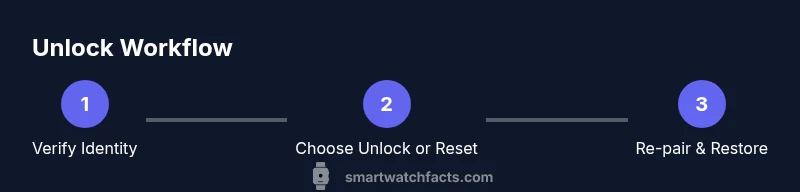
- 1
Verify identity in companion app
Open the watch’s companion app on your phone and sign in with the account linked to the watch. Follow the on-screen prompts to verify your identity using available options (password, biometric, or trusted device). If verification succeeds, you’ll typically be given an unlock option without erasing data.
Tip: Have your account credentials ready and confirm any push or code that appears on your phone. - 2
Choose unlock or reset option in app
Navigate to the watch settings within the app and select Unlock or Reset as appropriate. If Unlock is available, choose it and confirm your intent to proceed. This path preserves data and re-secures access without a full wipe.
Tip: Read the confirmation screen carefully to avoid an accidental data loss. - 3
If no unlock option available, initiate a reset via app
Select Erase All Data or Factory Reset in the app. Confirm the warning about data loss and allow the process to complete. The app will guide you through re-pairing once the reset finishes.
Tip: Back up any recent data if the app offers a backup before proceeding. - 4
Re-pair your watch with your phone
After the reset, re-pair the watch to your phone using the official setup flow. Restore from the latest backup if possible to recover settings and data.
Tip: Ensure both devices are on stable internet connections during setup. - 5
Re-secure your account and enable backups
Update your watch security settings (PIN/biometrics), review connected apps, and enable automatic backups if supported. This minimizes future lockouts and data loss.
Tip: Store recovery details securely in a password manager. - 6
Test the unlock flow
Lock the watch and attempt to unlock using the new credentials or biometric. Confirm that the preferred unlock method works consistently.
Tip: If the unlock fails, consult the manufacturer’s support resources or service.
People Also Ask
Is it possible to unlock without erasing data?
Yes, if the watch supports account verification or unlocking via the companion app, you can regain access without a factory reset. This path preserves data, provided verification succeeds and the device isn’t forced into a reset by failed verifications.
You can often unlock without erasing data by using the companion app’s verification steps.
What should I do if I can’t access the paired phone?
If you can’t access the paired phone, use the watch’s own recovery options or manufacturer’s account recovery online. In some brands, you may still unlock by signing into the related account on a computer or another device. If all else fails, a factory reset via the support flow may be required.
If you don’t have your phone, check the manufacturer’s online recovery options or use another device to verify ownership.
Will I lose all data after a factory reset?
A factory reset typically erases all data on the watch. Some data may be recoverable if it has synced to the cloud or your phone earlier. Always try non-destructive recovery first.
Yes, a factory reset usually wipes data, but backups may help recover some items.
How long does a reset usually take?
A reset can take anywhere from a few minutes to about 15 minutes depending on the device and base settings. Ensure the watch stays charged during the process.
Most resets finish within a quarter of an hour if the device is charged.
Can I recover data after reset from a backup?
If you had an up-to-date backup (cloud or phone), you can restore most data during re-pairing. Some apps and settings may need reconfiguration manually.
Backups help you recover much of your data after a reset, if you had one.
Watch Video
Key Points
- Verify identity via the official recovery path first
- Use the companion app to unlock or reset before hardware resets
- Back up data before any reset to minimize loss
- Re-pair and re-secure after unlock to restore access
- Enable biometric unlock to prevent future lockouts