How to Use the Da Fit Smart Watch: A Practical Guide
A comprehensive, step-by-step guide to setting up and using the Da Fit smart watch for health tracking, notifications, and everyday wear.


In this guide you’ll learn how to power on, pair with your phone, install the companion app, customize settings, track workouts and sleep, receive notifications, and optimize battery life on the Da Fit smart watch. Start by charging fully, then pairing to your phone and configuring your preferred metrics for daily use.
Why Da Fit Smart Watch Shines for Everyday Use
The Da Fit smart watch is designed to support daily routines with practical health tracking, clear notifications, and a comfortable form factor. Its features are chosen for ease of use, not complexity, making it accessible to both first-time wearables users and seasoned tech enthusiasts. With reliable sensors for steps, heart rate, and sleep, plus a responsive touchscreen and crisp watch faces, the Da Fit ecosystem encourages steady use without feeling intrusive. For most readers, the value comes from a simple setup, dependable syncing with a paired phone, and meaningful daily insights that can motivate healthier habits. Thoughtful design choices—like long battery life and straightforward on-wrist controls—reduce friction so you can focus on the activity rather than the device.
As you begin, keep expectations realistic: this is a practical tool that assists with daily activity and wellness tracking, not a medical device. The Da Fit platform emphasizes accessibility, which means you’ll find intuitive menus, clear metrics, and a supporting app that makes sense even if you’re upgrading from a basic fitness tracker. This guide walks you through setup, everyday use, and best practices for reliable data.
Quick-start: Powering On, Pairing, and Initial Setup
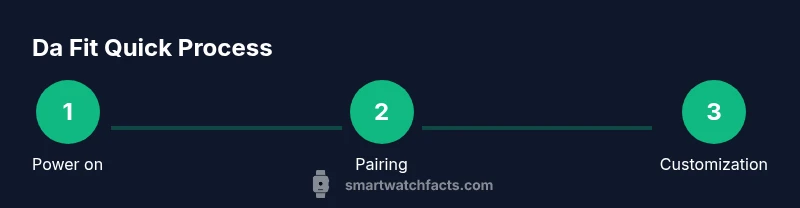
Getting started with the Da Fit smartwatch is a straightforward process designed to minimize guesswork. You’ll begin by giving the watch a healthy charge, then installing the companion app on your phone. Pairing is typically a quick Bluetooth step within the app, followed by selecting your preferred units, time format, and key health metrics. After initial setup, you can customize watch faces and widgets so the most important information is always visible. The result is a tailored experience that aligns with your daily routine, whether you’re focusing on activity goals, sleep trends, or notification management.
Navigating the Da Fit Interface
The Da Fit interface emphasizes readability and fast access to essential data. The home screen usually presents a chosen set of widgets—such as steps, heart rate, and weather—arranged for quick glanceability. Swiping left or right lets you switch between widgets, while tapping opens deeper menus for workouts, sleep analysis, and app shortcuts. A long-press or dedicated button typically brings up a settings menu where you customize face style, quick actions, and notification preferences. Practicing common gestures in a quiet moment helps you become proficient quickly, reducing the chance of missed data during busy days.
Health and Activity Tracking: What It Measures and How to Read It
Da Fit tracks standard wellness metrics that most users rely on daily. Steps show activity volume; heart rate provides real-time and resting values; sleep metrics reveal duration, stages, and quality. Workout modes capture specific data like duration, calories burned, and pace. Reading these dashboards effectively means focusing on trends over time rather than isolated numbers. For example, a week-long upward trend in steps signals more consistent movement, while irregular sleep stages may indicate the need for better sleep hygiene. When reading charts, look for your baseline and use it to set actionable goals—such as increasing daily movement by a set number of steps or improving sleep duration by a consistent hour.
Notifications, Apps, and Customization
Managing notifications on Da Fit helps you stay informed without becoming overwhelmed. You can choose which apps push alerts to the watch and decide whether previews appear on-screen. This is particularly useful for reducing interruptions during meetings or workouts. Apps can be added or removed to fit your lifestyle, and quick actions allow you to respond to messages via voice, canned replies, or keyboard input. Customization extends to watch faces and widgets, letting you swap in a high-contrast display for outdoor visibility or a minimalist style for workdays. Regularly reviewing app permissions ensures your data stays aligned with your privacy preferences.
Battery Life, Charging, and Longevity
Battery performance varies with use, but practical steps can maximize endurance. Start with a full charge before big days or long workouts, and enable a power-saving mode during slower activity days. Reducing screen brightness, limiting always-on display time, and controlling background data syncing can significantly extend battery life. If you notice faster drain, check the health of the battery by ensuring you’re on the latest firmware and that apps are not running unnecessary background processes. A well-structured charging routine—charging overnight or when the battery dips below a certain threshold—helps ensure the watch is ready when you need it most.
Privacy, Security, and Data Management
Wearable devices collect personal metrics that can be sensitive. It’s important to review app permissions, data-sharing settings, and whether your data is stored locally or in the cloud. Use strong authentication on the connected phone, and enable optional privacy features on the watch, such as screen lock when not in use. Regularly reviewing data retention settings helps ensure you’re comfortable with what’s stored and for how long. If you decide to delete data, confirm what is removed from the watch, the app, and any services connected to your account to avoid gaps in your history.
Troubleshooting and Getting Help
Most Da Fit issues resolve with a few targeted steps. If the watch won’t pair, ensure Bluetooth is enabled on the phone and try restarting both devices. For sync problems, open the app and retriever data manually, then re-pair if needed. If the screen becomes unresponsive, perform a soft reset or hold the side button according to the official guidance. When problems persist, consult the official support site, contact customer service, or check the community forums for known fixes. Keeping software up to date helps prevent many common issues.
Authority Sources
If you want to explore broader guidance on wearable devices, consider credible health and technology resources that discuss device safety, data privacy, and consumer protections. These sources provide context for how wearables fit into daily health routines and how to manage data securely over time. They also offer general recommendations for responsible device use and privacy best practices that complement hands-on setup steps.
Tools & Materials
- Da Fit smart watch(Fully charged before first use)
- Smartphone with Bluetooth(iOS or Android, Bluetooth 4.0+)
- Da Fit app(Install from App Store/Play Store; create or sign in to account)
- USB charging cable or dock(Original charger recommended for best results)
- Extra watch band(Optional for comfort or style)
- Temporary access to Wi‑Fi/Cell data(Helpful for initial app setup)
Steps
Estimated time: 25-40 minutes
- 1
Power on and charge
Connect the Da Fit watch to its charger and wait for the display to awaken. A full initial charge helps ensure a smooth pairing experience.
Tip: If the display stays dark after plugging in, press and hold the side button for 3 seconds to wake it. - 2
Install the Da Fit app
Download the official app on your phone, create or sign in to your account, and grant necessary permissions so data can be synced.
Tip: Enable location and Bluetooth permissions to improve pairing reliability. - 3
Pair the watch with your phone
In the app, choose Add Device, select Da Fit Watch, and follow prompts to complete Bluetooth pairing.
Tip: Keep the devices close together during the pairing process. - 4
Sync data and set preferences
Sync the initial data set and adjust units, time format, and key metrics like steps, distance, and heart rate.
Tip: Set a daily reminder to wear the watch to improve data accuracy. - 5
Customize faces and widgets
Browse available watch faces and add widgets (steps, heart rate, weather) that you want on the home screen.
Tip: Choose a high-contrast face for readability in sunlight. - 6
Configure notifications
Choose which apps can push alerts to the watch and decide if previews appear on the screen.
Tip: Prioritize work apps to minimize interruptions during tasks. - 7
Wear, maintain, and optimize
Adjust the strap for comfort and wipe the sensor area regularly to maintain sensor accuracy.
Tip: Avoid wearing the watch too tightly for long periods and clean the contacts weekly.
People Also Ask
How do I pair the Da Fit watch with my phone?
Open the Da Fit app, tap Add Device, select Da Fit Watch, and follow the on-screen prompts to pair via Bluetooth.
To pair, open the Da Fit app, add a device, and follow the prompts. Make sure Bluetooth is on.
Can I read notifications on the Da Fit watch?
Yes. You can receive selected app alerts on the watch. Manage which apps push alerts from the app settings.
Yes, you can read notifications from chosen apps on the watch.
How do I customize the watch face?
In the app, browse the face gallery and tap a face to preview; long-pressing the watch may also switch faces.
Go to the app, pick a face you like, and switch it on the watch.
What if the watch won’t turn on?
Make sure it’s charged. If needed, perform a reset by holding the side button for a few seconds or reconnect to a charger.
Check the charge and try a reset by holding the button.
Is the watch waterproof or water-resistant?
Most Da Fit models have some water resistance. Avoid submerging beyond the rating and dry after exposure.
Water resistance varies by model; follow the rating and dry after water exposure.
How can I extend battery life?
Enable power-saving features, reduce screen brightness, and limit background syncing to essential data.
Use power-saving modes and dim the display to stretch battery life.
Watch Video
Key Points
- Start with a full charge and quick pairing.
- Personalize faces and metrics for your routine.
- Manage notifications to reduce interruptions.
- Keep software updated for best accuracy.
- Clean the sensor area to maintain data quality.