Step-by-Step Guide to Syncing a Smartwatch: 2026 Edition
Learn how to sync your smartwatch with iOS and Android devices, set permissions, manage data flow, and troubleshoot common issues for a smooth, cross-device experience.


According to Smartwatch Facts, syncing a smartwatch with your phone improves data continuity, notifications, and cross-device app integration. In this quick answer, you will learn how to pair, authorize, and tailor sync settings across iOS and Android, ensuring health metrics, calendar events, and reminders flow smoothly between devices. This article covers essential steps, common pitfalls, and best practices for reliable syncing.
Quick start: what syncing achieves
Syncing your smartwatch with your phone enables real-time health data across devices, mirrored notifications, and seamless app continuity. According to Smartwatch Facts, a properly configured sync setup reduces data gaps and keeps calendars, reminders, and activity metrics aligned across platforms. In this section, we’ll cover the core goals: reliable pairing, data-type selection, and consistent data flow without unnecessary duplicates. Expect a smoother daily experience as messages, workouts, and wellness metrics stay connected across devices.
Platform differences: iOS vs Android pairing
The path to a successful sync differs slightly between ecosystems. On iOS devices, you typically pair through the native companion app and rely on the operating system’s health and notification sharing services. On Android, the pairing often goes through a Wear OS or manufacturer-specific app, with tighter integration to Google services and system-wide notification access. Regardless of platform, keeping both devices updated and granting the necessary permissions is essential for a frictionless pairing process. The common goal is to establish a stable Bluetooth link and a trusted account connection that enables cross-device data flow without duplications or lag.
Data types and permissions: what gets synced
Not all data needs to travel across every device. Common synced data includes notifications, step counts, heart-rate readings, sleep data, calendars, and basic app shortcuts. Health platforms often combine data from multiple sources to present a unified view. When syncing, you’ll be prompted to approve data access and to select which data types are shared. For privacy, limit the scope to what you truly need (e.g., notifications and health metrics) to minimize unnecessary data exposure. Always review permissions after major software updates to ensure continued reliability.
Notifications, health data, and app integration
A well-configured sync preserves the notification stream, so calls, messages, and app alerts appear on your wrist without delay. Health data is typically sent over Bluetooth and occasionally synced via cloud services when you have internet access. App ecosystem integration—calendar events, reminders, and music controls—depends on the specific smartwatch model and its companion app. If you use multiple apps for workouts, health tracking, or productivity, a consolidated view often requires enabling both device-to-phone and cloud-based syncing paths. balancing these paths reduces redundancy and improves accuracy.
Troubleshooting common sync problems
If syncing stalls, start with the basics: restart both devices, ensure Bluetooth is active, and confirm there are no outstanding OS updates. Re-pairing the watch sometimes resolves stubborn issues; if you do this, make sure to back up data first. Check that the smartwatch app has the necessary permissions (notifications, background activity, location where relevant). If cloud sync is involved, verify your internet connection and login status. In persistent cases, consult the device manufacturer’s support resources for model-specific guidance.
Privacy, security, and best practices
Data privacy matters more than ever when syncing wearables. Limit data sharing to essential information and disable background syncing for sensitive metrics when not needed. Regularly review app permissions and revoke access for unneeded services. Use device passcodes or biometric locks to protect the watch and phone, and enable encrypted data transfer where available. Keep firmware up to date to mitigate new security vulnerabilities and improve compatibility with third-party apps.
Real-world setup tips and maintenance
Plan time for an initial pairing session when you’re near a stable Wi‑Fi network and a charger. Keep both devices charged during setup, and perform a manual sync test by triggering a notification and checking that it appears on the watch. Periodically verify that health metrics flow into your preferred health app without duplication. If you add or remove apps that access health data, revisit the sync preferences to maintain a clean data pipeline. Regular maintenance prevents subtle drift between devices.
Tools & Materials
- Smartphone (iOS or Android)(Ensure the device is updated to the latest OS version and Bluetooth is enabled.)
- Smartwatch(Fully charged and with the latest firmware installed.)
- Charging cable(Keep handy during setup in case you need to recharge.)
- Stable internet connection(Wi‑Fi or cellular data for account sync and app updates.)
- Account credentials for smartwatch app(Have your Apple ID/Google account information ready for sign-in.)
- Access to the smartwatch companion app(e.g., Apple Watch app, Wear OS app, or manufacturer app.)
Steps
Estimated time: 20-40 minutes
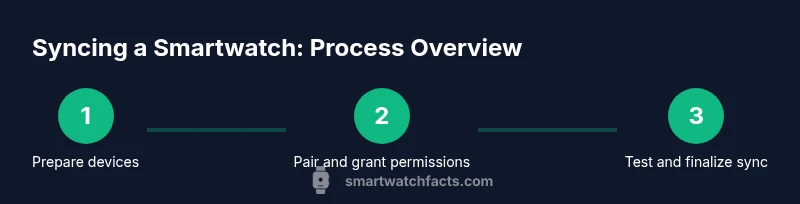
- 1
Prepare devices and update software
Charge both devices, connect to a stable internet source, and check for the latest OS and app updates. This ensures compatibility and reduces the chance of mid-setup failures.
Tip: Before pairing, enable Bluetooth and keep the devices physically close (within a few inches). - 2
Open the smartwatch app and start pairing
On your phone, open the appropriate smartwatch companion app and initiate the add new device flow. Keep the watch nearby so the app can discover it quickly.
Tip: Follow on-screen prompts exactly; some watches require you to confirm a pairing code on both devices. - 3
Confirm pairing and grant permissions
Accept any prompts to allow data access, notifications, and background activity. This creates a trusted link between devices for ongoing sync.
Tip: Disable battery saver during pairing to prevent the app from closing in the background. - 4
Choose sync preferences
Select which data types to sync (notifications, health metrics, calendars, apps). Tailor the setup to minimize data load and maximize relevance.
Tip: Start with essential data types and add more gradually to test reliability. - 5
Test the sync and notifications
Send a test notification, log a quick activity, and verify that data shows up in the health app and on the watch. Confirm calendar events appear at the right times.
Tip: If data doesn’t appear, trigger a manual sync from the smartwatch app. - 6
Troubleshoot if syncing fails
If issues persist, restart both devices, re-pair, and check permissions. Consider network resets or reaching out to support if the problem continues.
Tip: Document any error messages and steps taken to speed up support.
People Also Ask
Is an internet connection required to sync a smartwatch?
Not always; initial pairing often requires internet for updates and account setup, but ongoing syncing can occur over Bluetooth. Cloud syncing may occur if enabled.
You usually only need Bluetooth for daily syncing; internet may be needed for initial setup and updates.
Can I sync multiple devices to a single smartwatch?
Most watches pair with one phone at a time, but some ecosystems support data from multiple sources via companion apps. Check your device's documentation.
Most smartwatches pair with one phone at a time; some support secondary devices via apps.
Which data types sync between watch and phone?
Common data types include notifications, health metrics, calendar events, and app data. Some watches also sync music and photos depending on hardware.
Typically notifications, health data, and calendar events sync; music and photos depend on hardware and app support.
Why won't my watch sync with my iPhone?
Possible causes include outdated OS, permission blocks, Bluetooth issues, or account sign-in problems. Restart devices and re-pair to restore syncing.
Try restarting both devices and re-linking accounts; check permissions and Bluetooth.
How often does syncing occur automatically?
Automatic syncing runs in the background as configured by the app; you can typically adjust the interval or trigger a manual sync when needed.
Automatic sync runs in the background based on settings; you can also trigger manual sync.
Watch Video
Key Points
- Pair devices in close proximity to reduce interference.
- Select only essential data types to balance speed and privacy.
- Test notifications and health data sync after setup.
- Regularly update firmware to improve compatibility and security.