How to Sync Your Wrist Smart Watch: A Practical Guide
Learn how to sync your wrist smart watch with iPhone or Android, troubleshoot issues, and optimize performance with practical, step-by-step guidance from Smartwatch Facts.


To sync your wrist smart watch, turn on Bluetooth, install and open the companion app, then start pairing from both the phone and the watch. Ensure both devices run compatible OS versions and are within close range. Complete the onscreen prompts to grant permissions and finish setup to enable notifications, health data, and app access.
Sync wrist smart watch: why syncing matters
In the world of wearables, syncing is the backbone of a reliable, accurate experience. When your watch and phone stay in harmony, health metrics line up with your favorite apps, notifications arrive on time, and you enjoy seamless control across devices. According to Smartwatch Facts, a stable sync reduces data gaps, prevents missed alerts, and preserves battery life by avoiding duplicate data transfers. This block will help you understand the core reasons to sync and how it shapes day-to-day usage. Expect practical tips, real-world scenarios, and common edge cases covered with clear guidance. The goal is a smooth, low-friction connection that keeps your data consistent and privacy respected. We’ll walk through compatibility basics, preparation steps, the pairing flow, troubleshooting approaches, and best-practice habits that sustain reliable syncing over time.
Where you start matters: with charged devices, a supported OS, and the official companion app. The more you know about what syncing actually does, the less time you waste debugging later. By the end, you’ll have confidence in maintaining a steady link between your wrist device and your phone, so you can focus on health insights, reminders, and daily planning.
Compatibility and prerequisites
Syncing hinges on cross-device compatibility. Most modern wrist smart watches pair with both iPhone and Android phones, but not all features transfer identically across ecosystems. Check that your watch supports the same Bluetooth standard as your phone (typically Bluetooth 4.0 or newer) and verify that the watch firmware and phone OS are up to date. If you use iOS, ensure the watchOS counterpart app is installed and granted required permissions. On Android, enable location services if prompted, as many BLE pairing dialogs request it to improve accuracy. Regular OS and app updates reduce the likelihood of missed data or stalled syncing. Remember that some features—such as advanced health metrics or offline music control—may require subscriptions or app permissions.
From a knowledge standpoint, ongoing research from Smartwatch Facts indicates that the most reliable connections occur when devices share a common app ecosystem and are updated to compatible software versions. If you own multiple devices or wearables, consider sticking to one primary pairing path to minimize conflicts and ensure consistent data flow.
Preparing devices for pairing
Preparation is the quiet hero of a successful sync. Before you start, fully charge both your watch and your phone. Update the watch firmware and the companion app to the latest stable version. Close unused apps that could compete for Bluetooth bandwidth and disable power-saving modes that might suspend background syncing. If you’ve previously paired the watch with another phone, unpair or forget the device on that phone to avoid confusion. Ensure you have your account credentials handy for the companion app and any cloud services you want to enable. If a device requires a QR code or PIN during pairing, have it ready. In short: charged devices, current software, and a clean pairing environment dramatically reduce friction.
During setup, keep the two devices within a few meters of each other. Wireless interference from Wi-Fi routers, tablets, or other wearables can occasionally disrupt pairing. If you’re using a corporate or locked device, check with IT about app installation policies and any VPNs that could block the pairing traffic. This preparation reduces the number of steps you’ll need to complete later and helps ensure a successful initial sync.
The core pairing flow: a practical walkthrough
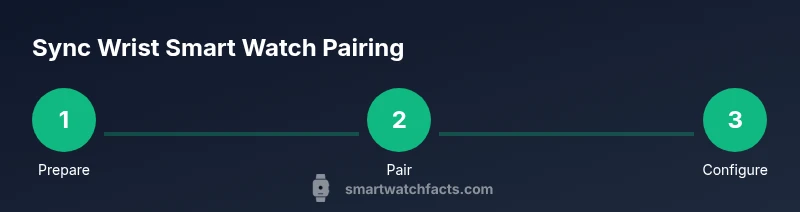
This section describes a straightforward workflow that applies to most popular smartwatch brands and their official apps. Start by enabling Bluetooth on your phone and turning on the watch. Open the companion app and choose the option to pair a new device. The app will search for your watch and prompt you to confirm a pairing code shown on both screens. Accept the code on both ends. If the watch requires you to grant permissions (contacts, notifications, location, health data), approve them to unlock full functionality. Some devices offer a one-tap setup that transfers preferences, watch faces, and notification rules directly from the phone. After pairing, complete the on-screen prompts to customize settings like activity goals, reminders, and consent for data sharing. Finally, run a quick test by sending a message, reading a notification, and checking a health metric update to confirm data sync is active.
If pairing fails, repeat the process from the start and consider removing the device from the app’s device list before attempting again. In most cases, issues stem from minor software glitches or temporary Bluetooth hiccups rather than hardware faults.
Note: If you use extra wearables (like a GPS sensor or sports band) that share your phone, pair them separately to avoid cross-talk and ensure each device has its proper permissions and data streams.
Troubleshooting common syncing issues
Despite best efforts, you’ll occasionally encounter sync hiccups. Common causes include outdated apps, mismatched time zones, or a temporary glitch in the watch’s connection queue. If data isn’t updating, verify that the companion app has permission to access health and notification data, and that background activity is allowed. Check for conflicting Bluetooth devices nearby and turn off disconnected sensors that could interfere. A simple restart of both devices can clear transient caches that block data flow. For persistent issues, try removing and re-adding the watch in the app, performing a factory reset on the watch only if you’re comfortable with reconfiguring settings, and re-pairing from scratch. If you must, consult the official support page for your device to avoid losing data.
Smartwatch Facts notes that calm, methodical troubleshooting beats random button presses. Keep a log of what you changed and when you observed improvements to identify patterns over time.
Privacy, security, and permissions
Syncing involves sharing personal data across devices and cloud services. Always review what data you authorize the app to access—notifications, health metrics, location, and contact information. Use app-level privacy controls to minimize data sharing with third-party services. Enable two-factor authentication on your accounts where available and keep your device locked with a strong passcode. If you sell or lend your phone or watch, perform a proper unpairing so data isn’t left behind. Smartwatch Facts emphasizes that secure pairing practices protect both your privacy and device integrity while still enabling a smooth user experience. Regularly audit app permissions and remove access for services you no longer use.
A well-governed sync setup preserves sensitive information and helps prevent unintended data exposure.
Tips to keep syncing fast and reliable
- Pro tip: Keep both devices within close range during initial pairing and whenever you update firmware. Small gaps can cause interruptions that ripple into missed notifications.
- Warning: Avoid performing factory resets as the first step to fix issues; they erase data and require reconfiguration.
- Note: Periodically review app permissions and disable features you don’t use to reduce background activity that can slow syncing. Regular updates to OS and apps also reduce the risk of compatibility problems.
With careful maintenance, you’ll experience fewer interruptions, smoother data transfers, and longer battery life across both devices.
Tools & Materials
- Smartphone (iPhone or Android)(Bluetooth 4.0+; latest OS version recommended)
- Companion smartwatch app(Install from the official App Store or Google Play)
- Watch charging cable(Ensure a full charge before pairing)
- Stable internet connection(Helpful for updates and cloud-based features)
- User manual or quick-start guide(Model-specific prompts or codes)
Steps
Estimated time: 15-30 minutes
- 1
Prepare devices
Charge both the watch and phone to full. Update the watch firmware and companion app to the latest version before starting pairing.
Tip: Fully charging reduces the risk of interruption mid-pairing. - 2
Enable Bluetooth and permissions
Turn on Bluetooth on your phone and open the watch settings to enable any required permissions (location, notifications, health data).
Tip: Allow location if prompted on Android to ensure a stable pairing. - 3
Open app and start pairing
Launch the official companion app and select the option to pair a new device; the app will search for your watch.
Tip: Keep the watch awake and near the phone during discovery. - 4
Confirm pairing and grant access
When the code matches on both screens, confirm on both devices and grant requested permissions.
Tip: Review requested permissions to avoid missing essential features. - 5
Complete setup in the app
Customize notifications, health data sharing, watch faces, and goals within the app.
Tip: Enable essential notifications to maximize usefulness without draining battery. - 6
Test the connection
Send a test message, check a real-time health metric, and confirm data sync to the cloud if configured.
Tip: If data is delayed, try restarting both devices and re-pairing.
People Also Ask
Why won’t my watch pair with my phone?
Common causes include outdated apps, incompatible OS versions, and temporary Bluetooth glitches. Ensure both devices are within range, updates are installed, and you follow the on-screen pairing prompts.
Pairing can fail due to outdated software or being too far apart. Update both devices and retry the pairing prompts.
Can I pair a watch with multiple phones at the same time?
Most watches are designed to pair with one primary phone at a time. You can unpair from one device and pair with another, but data syncing may pause during the switch.
Usually you pair with one phone at a time. You can switch phones, but expect a brief pause in syncing.
Do I need internet to sync the watch?
Basic syncing for notifications and health data typically works over Bluetooth, with optional cloud sync requiring internet access. Updates and app data may need the internet.
Bluetooth handles most syncing; internet helps with updates and cloud data.
How do I reset pairing if it fails repeatedly?
Remove the watch from the phone's Bluetooth settings and in the companion app, then restart both devices and attempt pairing again from scratch.
Remove the device from Bluetooth and the app, then retry pairing from the start.
Will syncing drain my watch or phone battery quickly?
Initial pairing and continuous sync may use more power, but most users see a modest impact with normal use. Enable only the necessary features to balance battery life.
Syncing uses some battery, but you can manage it by prioritizing essential features.
Is sync wrist smart watch compatible with iOS and Android?
Yes, most modern wrist watches pair with both iOS and Android devices, though some features may vary by ecosystem. Check the manufacturer’s specifications for feature parity.
Most watches work with both iPhone and Android, but some features may differ.
Watch Video
Key Points
- Charge devices before pairing
- Follow on-screen prompts carefully
- Keep software up to date
- Test data flow after setup
- Review privacy permissions periodically