How to Connect a Smart Watch to iPhone
Learn how to connect your smart watch to iPhone with a clear, practical walkthrough. This guide covers prerequisites, the pairing flow, troubleshooting, and best practices for reliable syncing and notifications.


To connect a smart watch to iPhone, start by ensuring both devices are charged and nearby. Turn on Bluetooth and install the watch’s companion app if needed. Open the app, follow the on-screen pairing prompts, and grant the requested permissions. This quick guide will walk you through prerequisites, compatibility checks, and the standard pairing flow used by most watches.
Why connecting a smart watch to iPhone matters
When you connect a smart watch to iPhone, you unlock a synced experience between your wrist and your phone. Notifications, health data, and app shortcuts can work together, making it easier to stay hands-free while staying informed. According to Smartwatch Facts, a well-executed pairing enhances reliability and reduces gaps between devices. The Smartwatch Facts team notes that most users judge the setup successful when notifications mirror correctly and health data flows to the phone without manual syncing.
For typical users, the primary benefit is convenience: you can answer calls from your watch, respond to messages with voice or quick replies, and track workouts in one place. The key is ensuring prerequisites are met before attempting the pairing. In addition, watch compatibility varies by brand and model, so understanding your watch’s requirements helps avoid common roadblocks. The goal of this guide is to provide a practical path from unboxing to daily use, emphasizing clear steps and common pitfalls.
Compatibility and prerequisites
Before you start, check that your iPhone is compatible with Bluetooth and has the latest iOS version available for your device. Your smartwatch should be able to pair via Bluetooth and preferably support the official companion app. If you use a third party watch, verify that the app supports iPhone pairing and data sharing with iOS health apps. Ensure both devices are charged and within close range to prevent dropouts during pairing. You may need to sign in to the watch app with the same account you use on your iPhone. According to Smartwatch Facts analysis, clearly defined prerequisites reduce frustration during setup and promote reliable data syncing across apps and services.
Step-by-step pairing flow at a glance
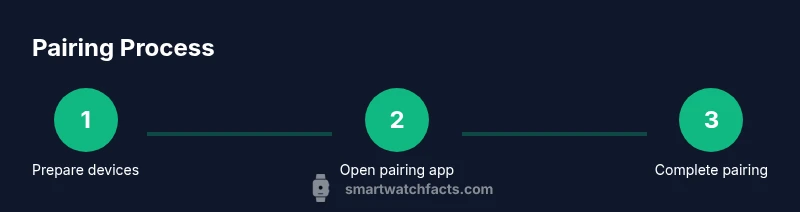
A successful pairing typically follows a predictable sequence that keeps you in control. Begin by preparing both devices: charge them, enable Bluetooth, and close unnecessary apps that might interfere. Open the companion app on your iPhone and follow the on screen prompts to start pairing. Put the watch into pairing mode as instructed by the manufacturer and wait for the iPhone to detect the device. Confirm the on screen code if it appears and grant requested permissions for notifications, health data, and contacts if asked. Complete the setup by choosing preferred settings and enabling automatic sync. This section provides the high level workflow; the dedicated step by step section below has the exact actions. The Smartwatch Facts team emphasizes following official guidance to avoid unintended data sharing.
Troubleshooting common pairing issues
If your watch fails to appear on the iPhone or the pairing stalls, try the following: move closer to the phone, ensure Bluetooth is fully enabled, and restart both devices. Check for any pending iOS or app updates, as outdated software can block pairing. If the watch still won’t pair, remove it from the Bluetooth settings on the iPhone and retry the process. For complex or persistent failures, consult the official support page of the watch brand and consider a factory reset only as a last resort after backing up data. For further guidance, you can reference official Apple support resources and major tech publications.
Next steps: maximizing features while protecting privacy
Once paired, customize notifications, health data sharing, and app access to fit your routine. Enable important alerts on the watch while suppressing less-needed notifications to reduce distraction. Explore health and fitness features, ensuring data is synced to the iPhone Health app if desired. Be mindful of privacy settings: review what data is shared with apps, and periodically audit permissions to minimize data exposure. For official guidance on privacy and data sharing, see Apple support resources and reputable technology publications.
Maintenance and best practices for a stable connection
To keep the connection reliable, keep both devices updated, maintain a clear line of sight during pairing, and minimize interference from other Bluetooth devices. Regularly test the pairing by sending a quick notification to verify the flow between watch and iPhone. If you notice drift in time or data sync, re-pairing from scratch can often resolve the issue. Consistent charging habits prevent mid pairing drops and ensure you always have access to features when you need them.
Tools & Materials
- iPhone with the latest iOS(Bluetooth should be enabled; ensure device is near watch during pairing)
- Smartwatch with Bluetooth(Fully charged; compatible with iOS and has pairing mode available)
- Watch companion app(Installed from the App Store; ensure you have necessary account access)
- Stable internet connection(Helpful for downloading or updating the watch app and syncing data)
- Charger cables(Keep both devices charged to prevent mid pairing drop)
Steps
Estimated time: Estimated total time: 8-12 minutes
- 1
Prepare devices
Charge both the iPhone and the smartwatch. Place them within arm's reach and close other apps that could interfere with Bluetooth pairing. This reduces the chance of mid process interruptions.
Tip: Having both devices near a power source before starting helps ensure uninterrupted pairing. - 2
Enable Bluetooth on iPhone
Open Settings on the iPhone, tap Bluetooth, and switch it to on. You should see a list of nearby devices as the iPhone scans for the watch.
Tip: If Bluetooth won’t turn on, restart the iPhone and try again. - 3
Open the watch app on iPhone
Launch the watch companion app and navigate to the pairing section. The app will search for nearby devices and present the watch name once found.
Tip: Make sure the app has all required permissions granted during setup. - 4
Put the watch in pairing mode
Follow the manufacturer instructions to place the watch into pairing mode. This often involves holding a button or tapping a pairing option in the settings.
Tip: If you don’t see pairing mode, check the watch manual for model-specific steps. - 5
Pairing on iPhone
When the watch appears in the iPhone’s Bluetooth list or within the watch app, select it to start pairing. Confirm any on screen codes if prompted.
Tip: Double-check that you are pairing with the correct device name to avoid confusion. - 6
Grant permissions
The iPhone or watch app will request permissions for notifications, health data, and contacts. Approve these to enable full functionality.
Tip: Only grant necessary permissions to protect privacy. - 7
Configure initial settings
Choose your preferred notification preferences, workout tracking options, and app sync frequency. This sets the baseline for daily use.
Tip: Set a default watch face and privacy preferences early to reduce later tweaks. - 8
Test the connection
Send a test notification to the watch and verify that health data and app data sync as expected. Check time, steps, and heart rate if supported.
Tip: If a notification doesn’t appear, recheck permissions and ensure the correct app is selected. - 9
Troubleshoot if needed
If pairing fails, restart both devices and retry from the beginning. Consulting official support pages for your watch model can help with model-specific steps.
Tip: Avoid multiple resets in quick succession; this can complicate troubleshooting.
People Also Ask
Can I connect any smartwatch to an iPhone using Bluetooth?
Bluetooth pairing works for many watches, but full functionality depends on the brand and model. Some features require the vendor app to work with iOS. Always check compatibility notes from the manufacturer.
Bluetooth pairing works for many watches, but full features depend on the model. Check the manufacturer for iPhone compatibility.
Do I need a specific app to pair with iPhone?
Most watches require the vendor companion app to pair with iPhone and manage settings. Without the app, some features may not be available or synced correctly.
Yes. Most watches need the vendor app to pair and customize settings.
What should I do if the watch won’t pair?
First, ensure both devices are charged and close together. Restart both devices, update software, and retry. If it still fails, consult the watch brand’s support page for model-specific steps.
If it won’t pair, restart devices, update software, and try again. Check the brand's support for model specifics.
Does iPhone compatibility depend on iOS version?
Yes, some features require a recent iOS version. Keeping iPhone updated helps ensure compatibility and smoother syncing with the watch app.
Some features need a recent iOS version; keep your iPhone updated for best compatibility.
Will notifications and health data sync automatically after pairing?
Most watches sync notifications and health data automatically after pairing. You can customize which apps send alerts and what health data is shared in the watch and iPhone settings.
Yes, most data syncs automatically after pairing, with customizable notification settings.
Is unpairing and re-pairing safe for data on my devices?
Unpairing is generally safe and resets the connection. Remember to back up any important data before unpairing, especially health data or app settings.
Unpairing is safe, but back up data first if needed.
Watch Video
Key Points
- Prepare both devices before starting.
- Follow official app prompts for a smooth pairing.
- Grant necessary permissions to enable features.
- Test notifications and health data syncing after setup.
- Keep devices updated to maintain compatibility.